
The Settings tab. Everything here affects only your own account.
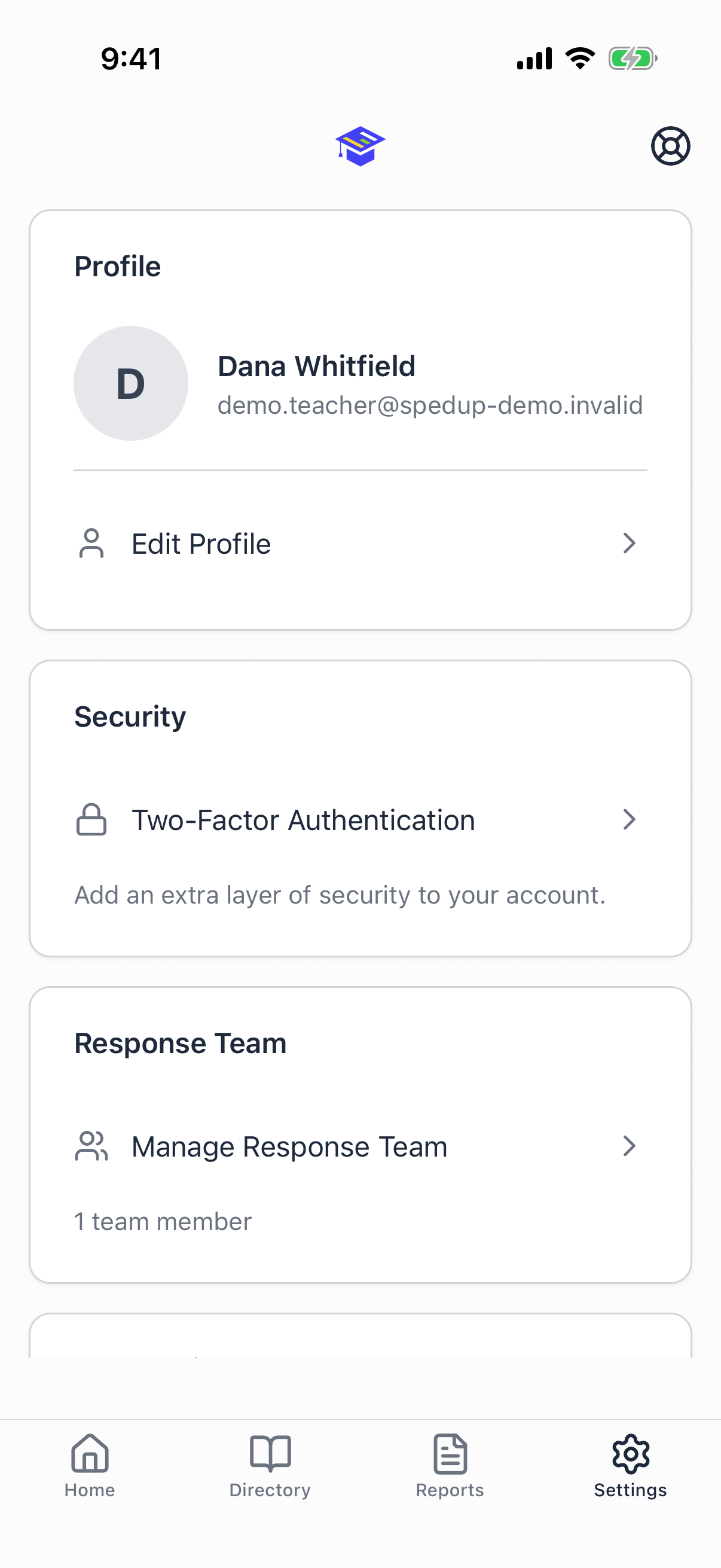
Edit Profile
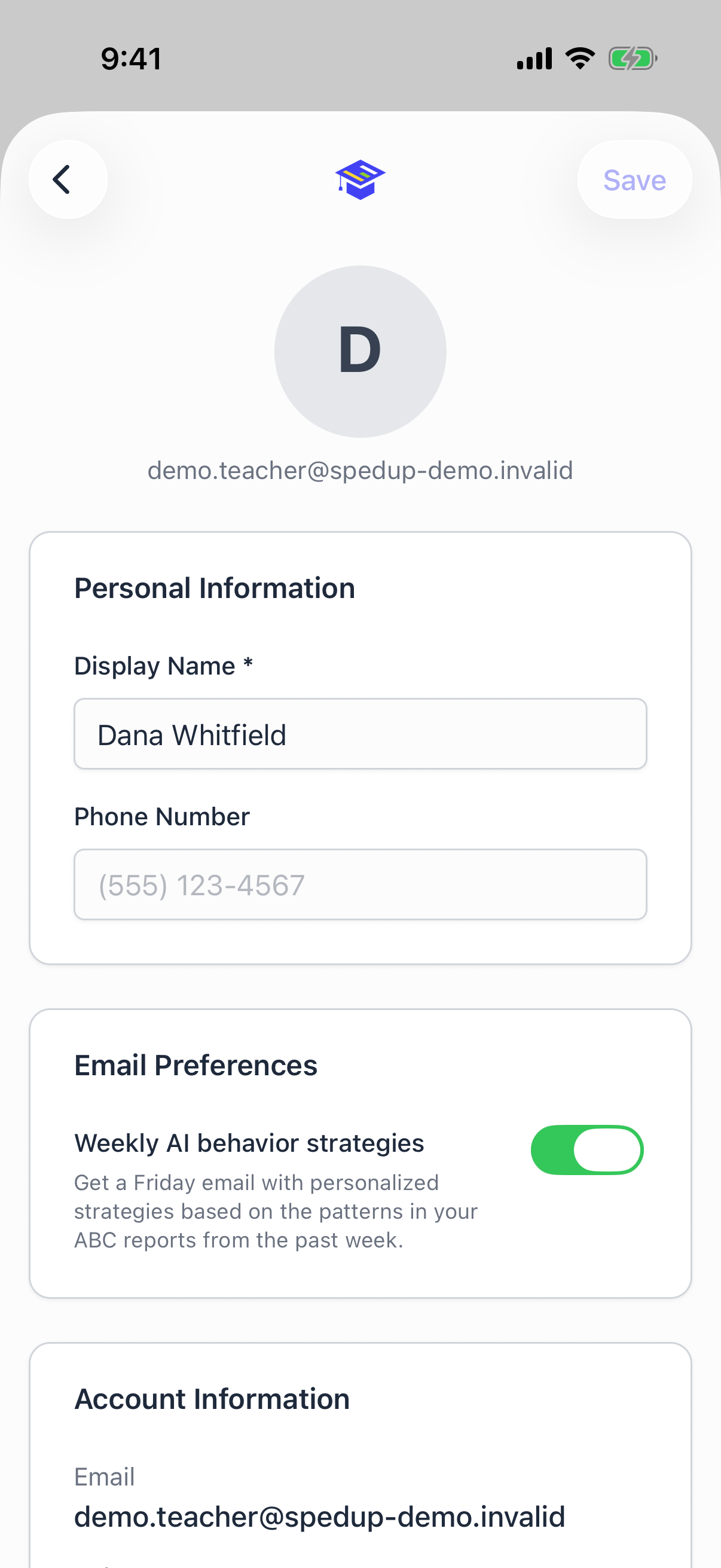
Your name, your phone number, and your email preferences.
Name. This is what appears as the reporting teacher on everything you file, and what colleagues see in the staff directory. Spell it the way you want it to show up.
Phone number. Needed for two factor authentication and for admin support alerts. Optional if you want neither.
Weekly AI behavior strategies. A switch. When it is on, you get an email every Friday with intervention strategies based on the patterns in your own reports from that week. It is on by default for teachers who are actively documenting. Turn it off here, or use the unsubscribe link in any of the emails. See The weekly strategy email.
Two-Factor Authentication
Settings, then Two-Factor Authentication.
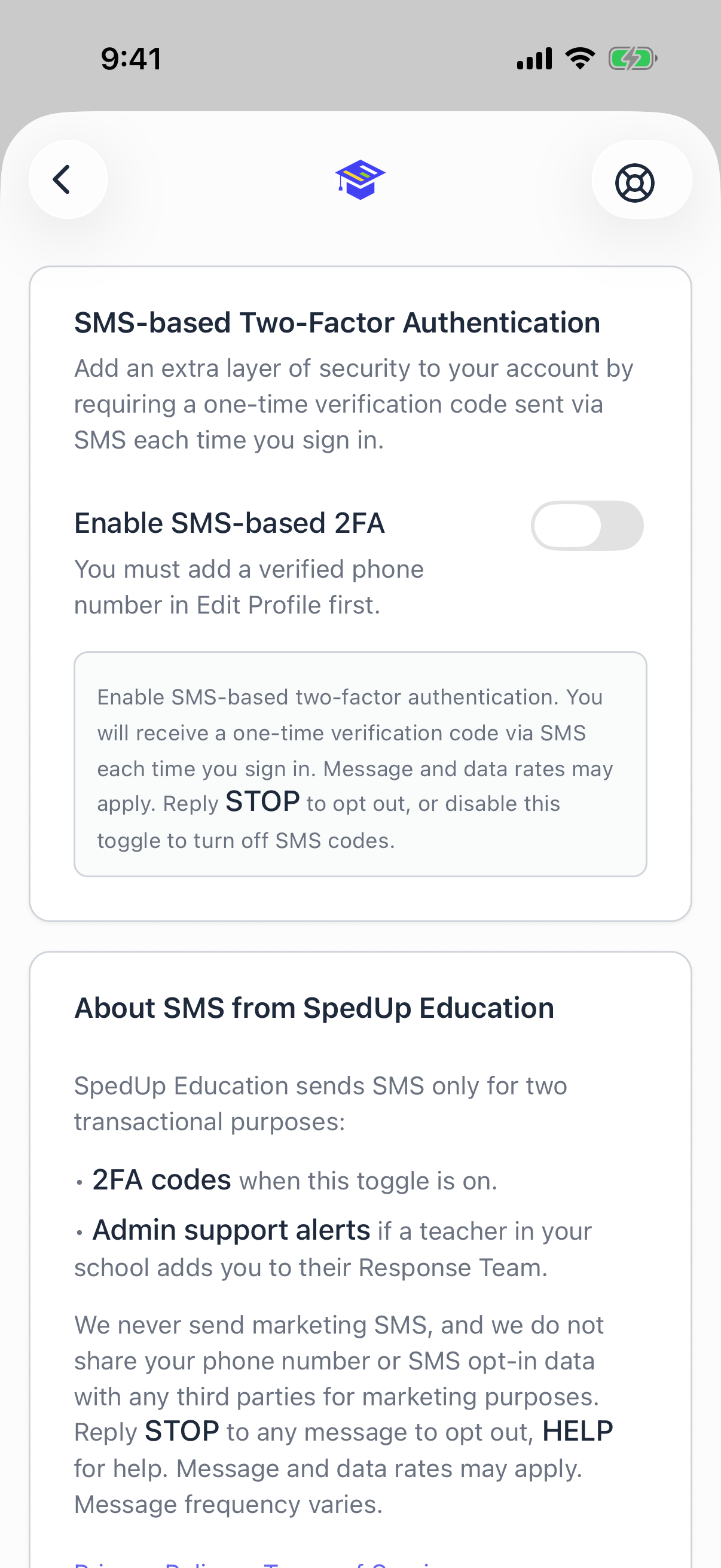
Off by default. Turn it on and SPEDup texts you a one time code every time you sign in. You need a verified phone number first, so add one in Edit Profile if the switch is greyed out.
The same screen explains exactly what SPEDup sends by text and how to stop it. Short version: two kinds of message, both transactional, never marketing. Reply STOP to any message to opt out, or turn this switch off.
If your district requires two factor authentication, turn this on.
Manage Response Team
Who gets notified when you tap the support button. Set this up before you need it. See Requesting admin support.
Switch School
Visible to itinerant staff and district administrators. Pick a building and the whole app re scopes to it: directory, reports, alerts, everything.
If you work in three buildings, switch when you arrive. Reports you file are attached to whichever school you are currently in.
Switch school screenScreenshot coming soon
Dark Mode
A switch. The whole app follows it, including charts.
Notifications
Tap this row to allow push notifications. It shows Enabled in green once permission is granted.
Turn this on. Without it you will not be notified when a colleague requests admin support, and tapping through from a notification straight into an alert is the fastest way to respond.
If you denied the permission earlier, the app cannot ask again. Enable notifications for SPEDup in your phone's own settings.
Sign Out
At the bottom.
Before you sign out on a shared device, make sure any drafts have synced. Open the Drafts tab and confirm nothing says Waiting to sync. Queued drafts live on the device until they upload.