
Getting rosters right is the unglamorous work that makes everything else in SPEDup useful. A student with no classroom does not show up on the right dashboards. A teacher with no assigned students has an empty analytics view.
Students
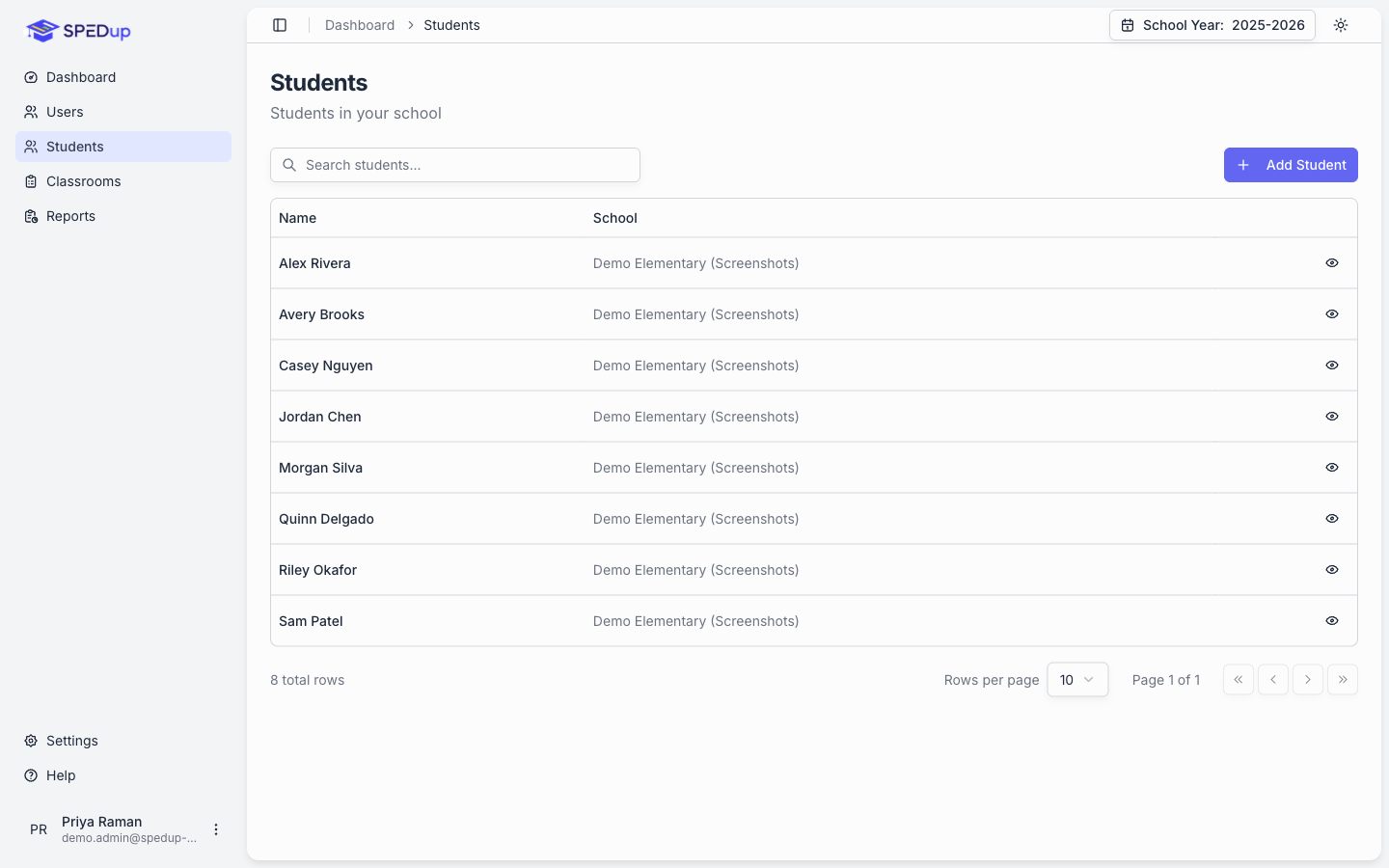
The Students page lists everyone at your school, or across your district if you are a district administrator.
Adding a student
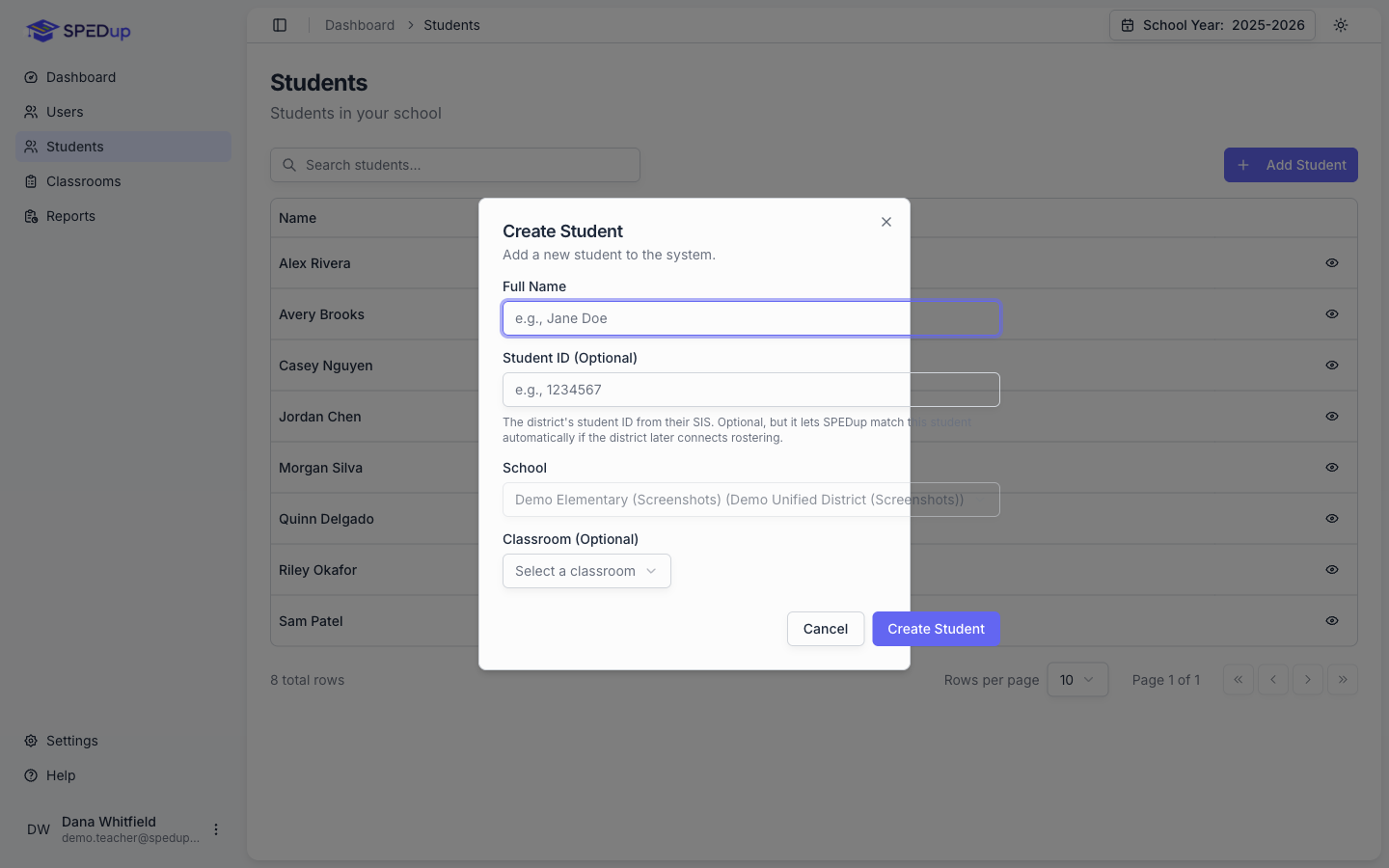
Click Add Student.
| Field | Required | Notes |
|---|---|---|
| Full Name | Yes | How the student appears everywhere in SPEDup |
| Student ID | No | Your district's own identifier from your SIS. Useful for matching records later |
| School | Yes | Pre selected if you are a school administrator |
| Classroom | No | You can assign this now or later |
The student profile
Click a student to open their profile. This is the page you will spend the most time on.
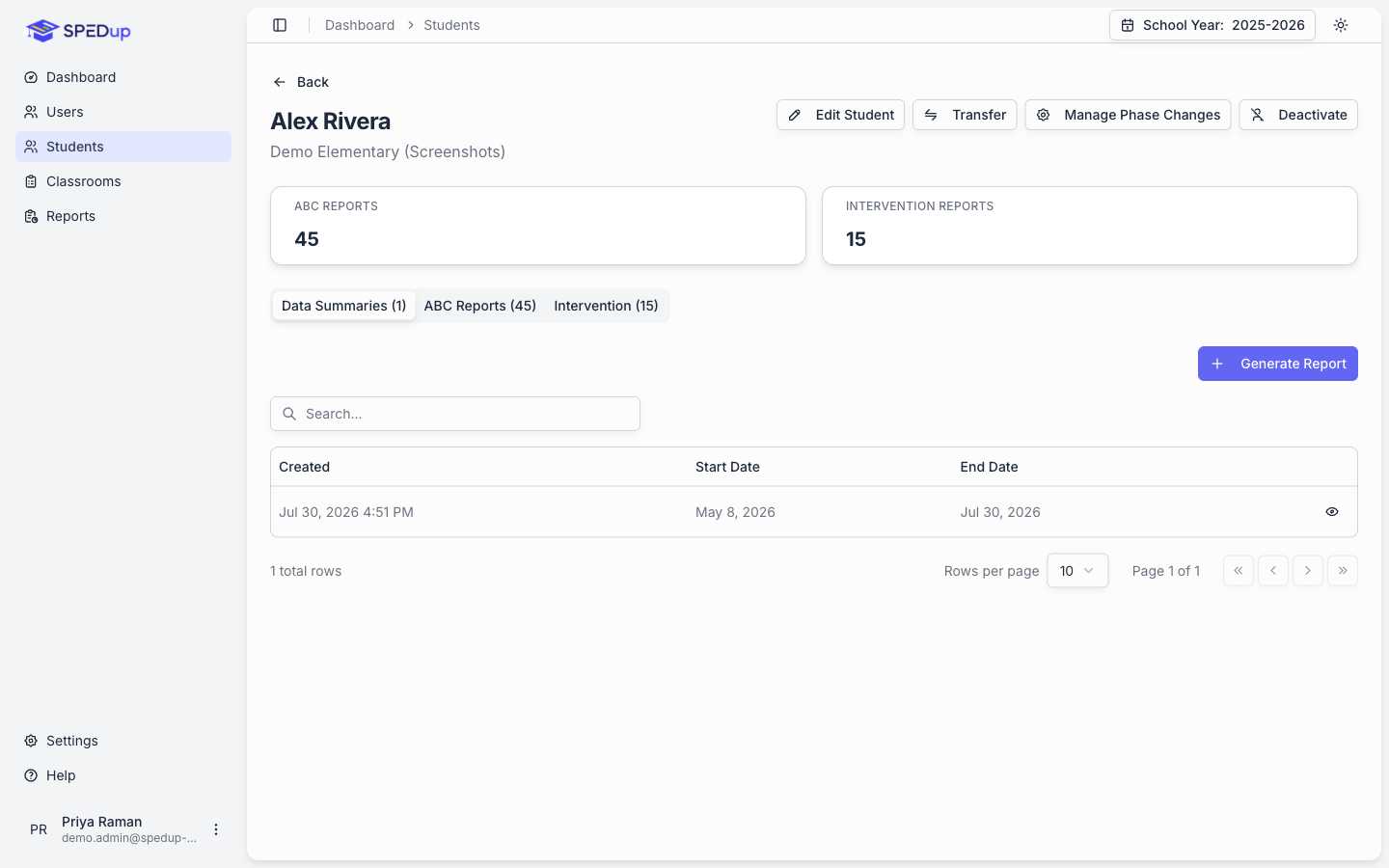
At the top, counts for data summaries, ABC reports, and intervention reports.
Across the top, the two things you are most likely to want:
- ABC report and Intervention start a report with this student already selected. See Writing reports. They are hidden for withdrawn students, whose history stays readable but who have nothing new to record.
Everything else sits behind Actions:
- Edit Student to change the name, ID, or classroom
- Transfer to move the student to another school
- Manage Phase Changes to record when an intervention started or changed
- Deactivate or Reactivate
Three tabs below:
- Data Summaries. Every summary generated for this student, with Generate Report to build a new one. See Data summaries.
- ABC Reports. Every ABC report, with Bulk Export ABCs to pull a date range into one PDF. See Exporting.
- Intervention. Every intervention report.
Transferring a student
Use Actions, then Transfer on the profile, and enter the destination school's 6 digit code. The student's school assignment moves. Their reports stay attached to the school they were filed at.
Available to district administrators and school administrators. Teachers and itinerant staff cannot transfer students, because reassigning a school is student administration rather than documentation.
Deactivating a student
Use Actions, then Deactivate. Soft delete, same as everywhere else in SPEDup:
- The student comes off active rosters and out of report pickers
- Every report they appear on stays intact and readable
- Data summaries already generated stay valid
Use this when a student moves or exits the program. Reactivate brings them back with their history.
Classrooms
The Classrooms page is available to school administrators.
Adding a classroom
Click Add Classroom.
| Field | Required | Notes |
|---|---|---|
| Classroom Name | Yes | Room number or teacher name, whatever your building uses |
| Description | No | |
| School | Yes | Pre selected for school administrators |
| SPED Classroom | No | A switch that labels the room as a special education setting. Optional, and it does not restrict anything. Any classroom can be added and documented in |
The classroom profile
Two tabs: Students and Teachers, each with a count.
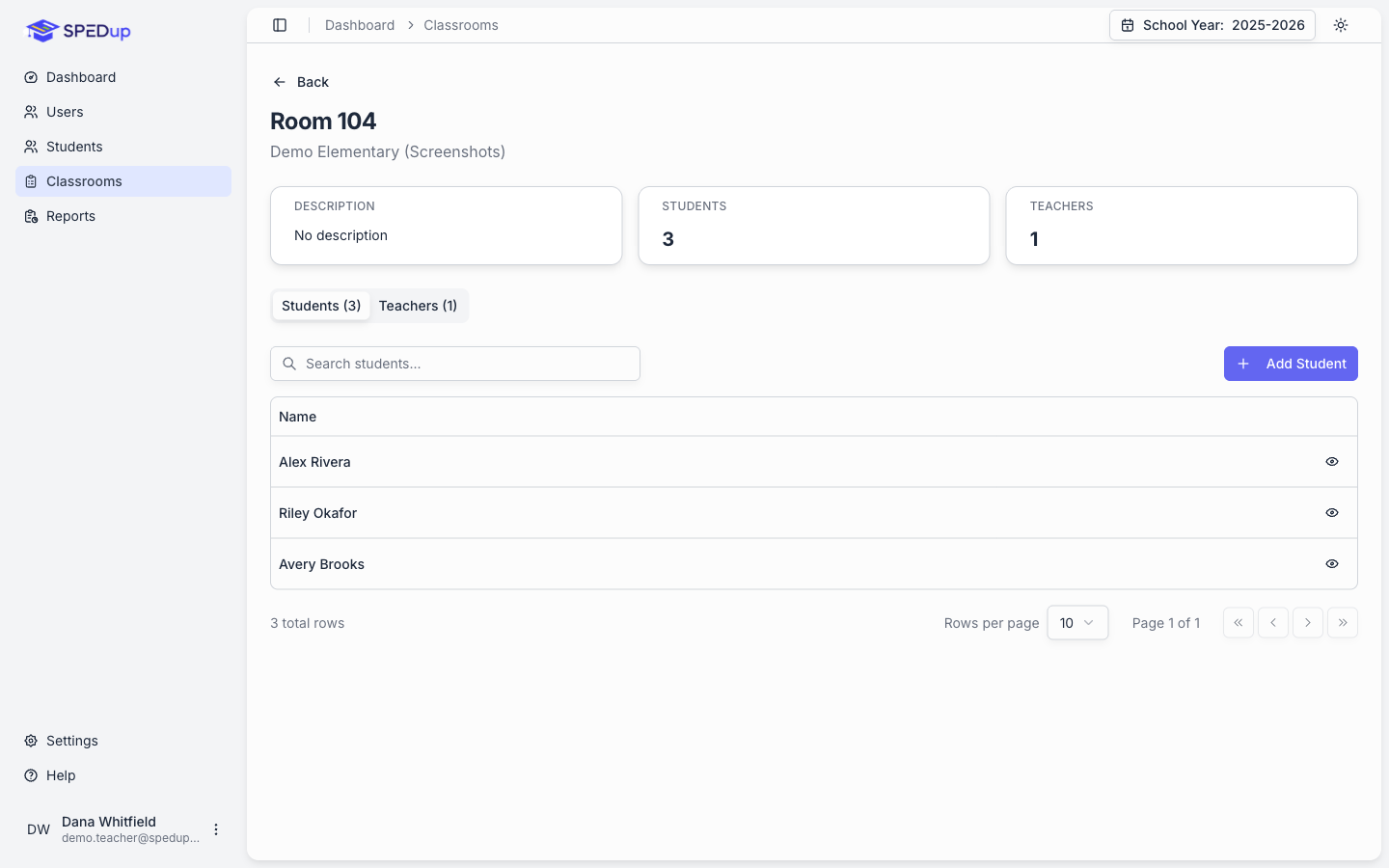
Add students to the room from the Students tab. Assign teachers from the Teachers tab.
Deactivated students and staff do not appear in these pickers, so old records do not clutter your rosters.
Assignments and why they matter
There are two kinds of assignment and they do different things.
Teacher to classroom. Drives the teacher's My Classrooms view on mobile, and the Student Incident Count chart on their dashboard, which is scoped to students in their classrooms.
Staff to student. Drives My Students on mobile, and whether that person can open a student's analytics.
This one is not limited to special education staff, and the student does not need to be on an IEP. Assign whoever is responsible for the student: their classroom teacher, a co teacher, a behavior specialist, a counselor. A student can have several people assigned.
A teacher who tells you their dashboard is empty or that they cannot see analytics for a student is almost always missing one of these. Check the assignments before you check anything else.
Make the assignment from the student's profile on mobile, or from the classroom roster on the dashboard.
A setup order that works
For a new building, in this order:
- Create the school, with a school code
- Create the classrooms, general education and special education alike
- Add the students and put them in classrooms
- Have staff join with the school code, or invite them by email
- Assign teachers to their classrooms
- Assign staff to the students they are responsible for
- Set administrator roles for the people who need them
Skipping step 6 is the single most common cause of "SPEDup does not show me anything."