
Not every event needs a full ABC report. An intervention room visit, a brief redirection, a request for support: those get the intervention report, which is one screen and takes about a minute.
This page covers the mobile app. Intervention reports can also be filed on the dashboard: see Writing reports from the dashboard.
You may also see these called BASE reports. Same thing.
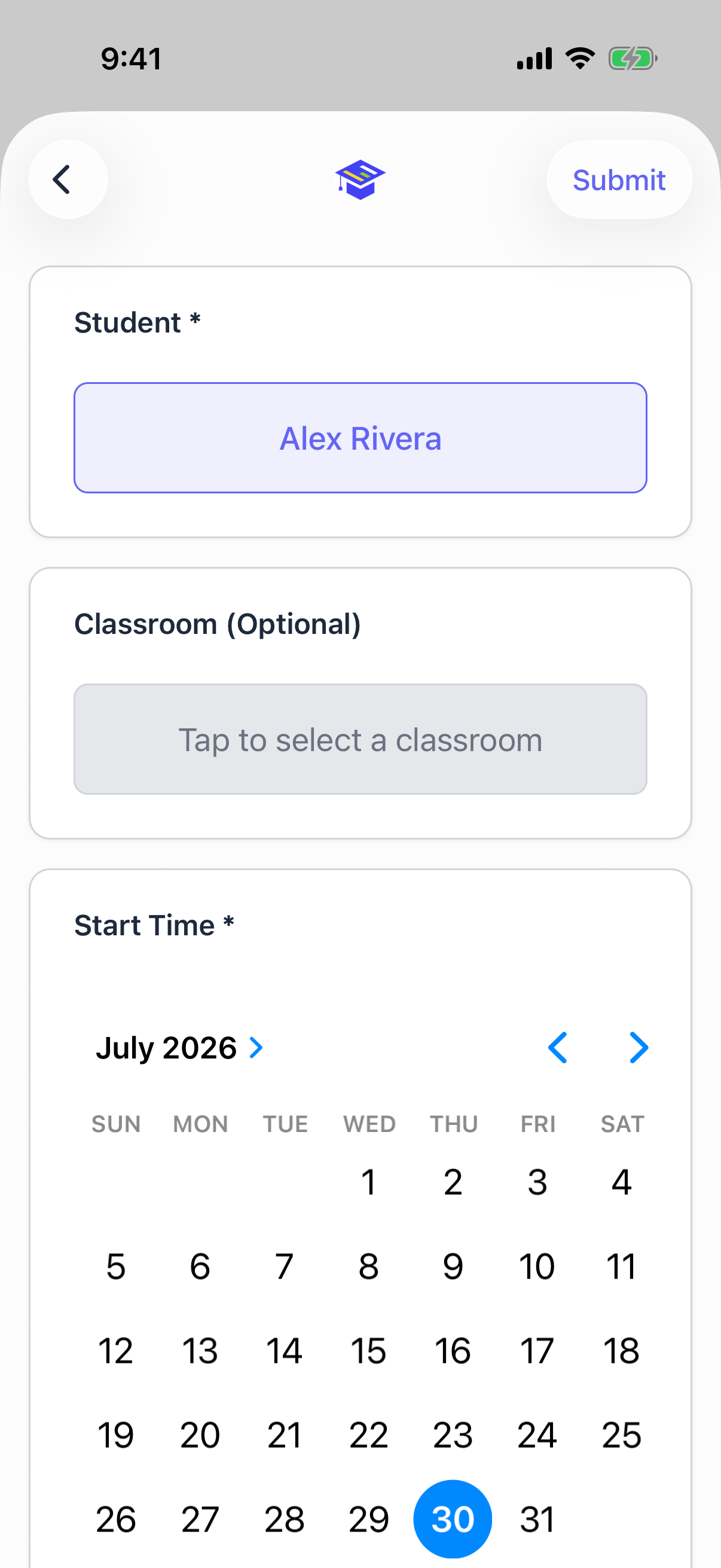
Starting one
- Reports tab, Create, then Intervention Report
- Home tab, Create Intervention under Quick Actions
- A student's profile, then Create Intervention, which pre selects the student
- From an ABC report you just wrote, which carries the student and start time over. See below.
The fields
Student. Required. Tap to search and pick.
Classroom. Optional. Which room this relates to.
Start time and end time. Same behavior as the ABC report. The end time tracks itself and shows the running duration until you either submit or tap to set it yourself. Tap again to hand it back to the clock.
Request type. Required, and you can pick more than one. Who asked for the support:
- Teacher Request, checked by default
- Student Request, when the student asked
- Admin Request, when an administrator sent them
At least one has to be checked.
Activity. Required. What the student did during the visit.
Reason. Required. Why support was needed.
Additional notes. Optional. Anything else worth recording.
Linking to an ABC report
When an incident leads to an intervention, connect them. The full episode then reads as one story instead of two records that happen to share a date.
Open the ABC report you just filed and start an intervention report from it. The student and start time carry over, and the two reports are linked once the intervention is submitted.
If you were offline when you created the link, SPEDup holds the connection and applies it once both reports have synced. You do not have to go back and redo it.
Auto save and drafts
Intervention reports auto save exactly like ABC reports. They appear in the Drafts tab, on the home screen under Pending Drafts, and they resume where you left them.
They work offline too. If you have no signal, the report saves to your phone, shows as waiting to sync, and uploads itself when you reconnect. See Drafts and working offline.
Editing and deleting
You can edit and delete your own intervention reports, drafts and submitted alike. Administrators can edit any report at their school.