
When you need help in the room right now, the support button sends a text message and a push notification to the people you have chosen. It takes about ten seconds.
Alerts can be sent from the dashboard as well, from inside an ABC report. Setting up your response team is still mobile only, on this page. See Writing reports from the dashboard.
Set up your response team first
The button does nothing until you tell SPEDup who to notify. Do this on your first day, not in the middle of an incident.
- Settings tab, then Manage Response Team.
- Tap the staff members who should be notified. Tap again to remove.
- Tap Save in the header.
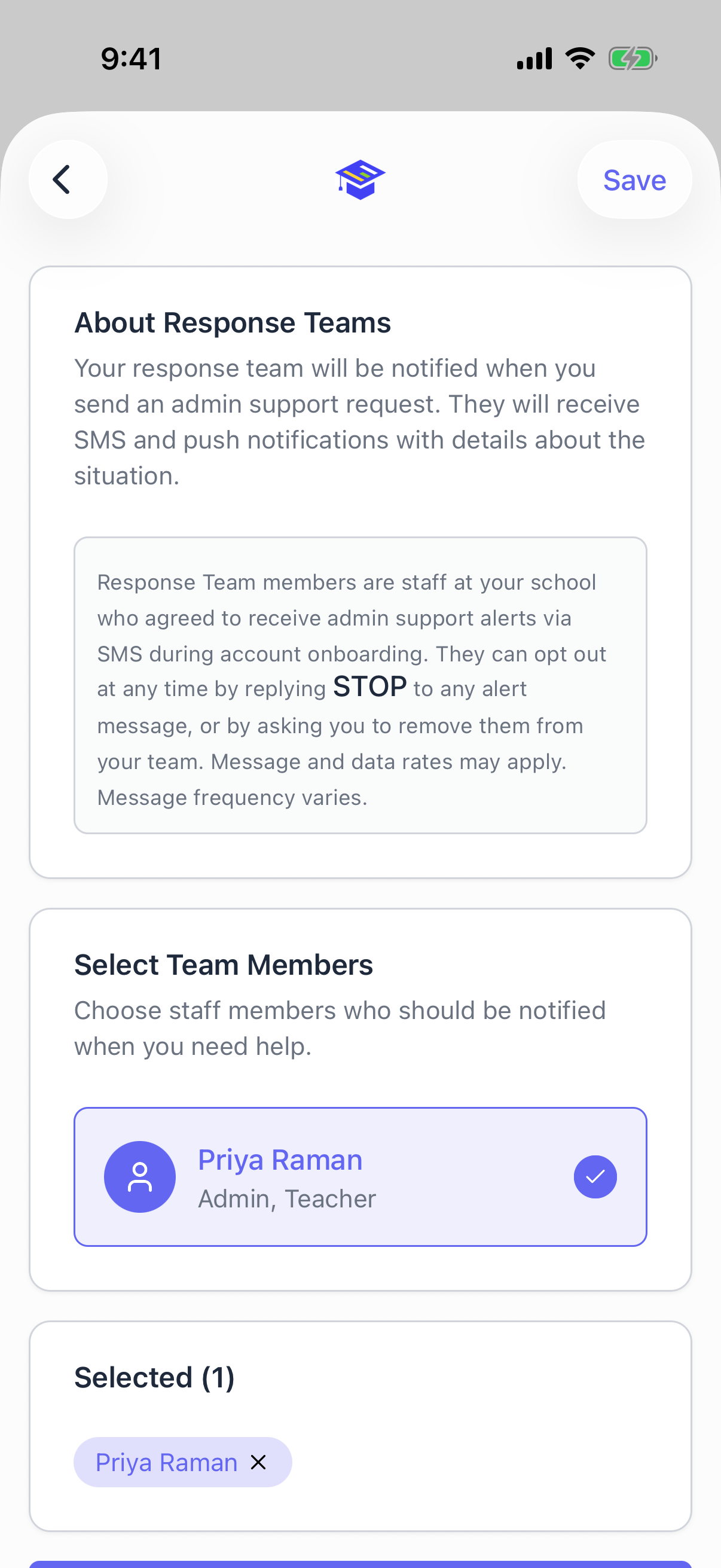
Pick people who are actually reachable during your teaching day. A team of one is fragile. Three or four people gives you real coverage.
If you tap the support button before setting a team up, SPEDup offers to take you to this screen rather than sending an alert nobody receives.
What your team receives
Everyone on your response team gets both a text message and a push notification, immediately, with the student, the classroom, and what you wrote.
They receive the text because they added a phone number and agreed to admin support alerts during their own setup. Anyone can opt out by replying STOP to a message, by asking you to remove them from your team, or by turning off SMS in their own settings. If someone stops receiving alerts, that is why. See Text messages and notifications.
Sending an alert
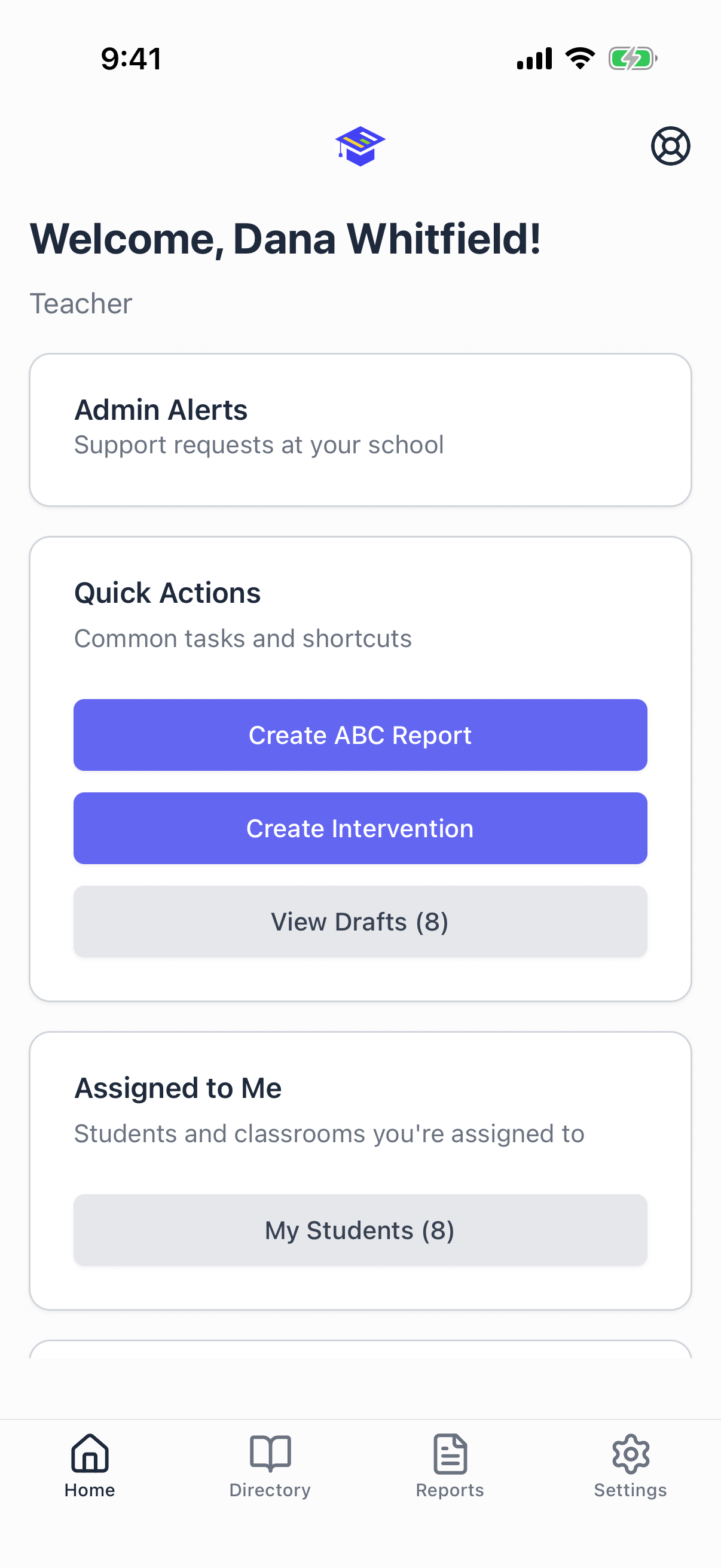
The life ring icon is in the header of every screen in the app. Tap it.
The alert sheet opens:
- Student. Required. Search and pick.
- Classroom. Optional.
- Description. Required. What is happening and what you need.
- Send.
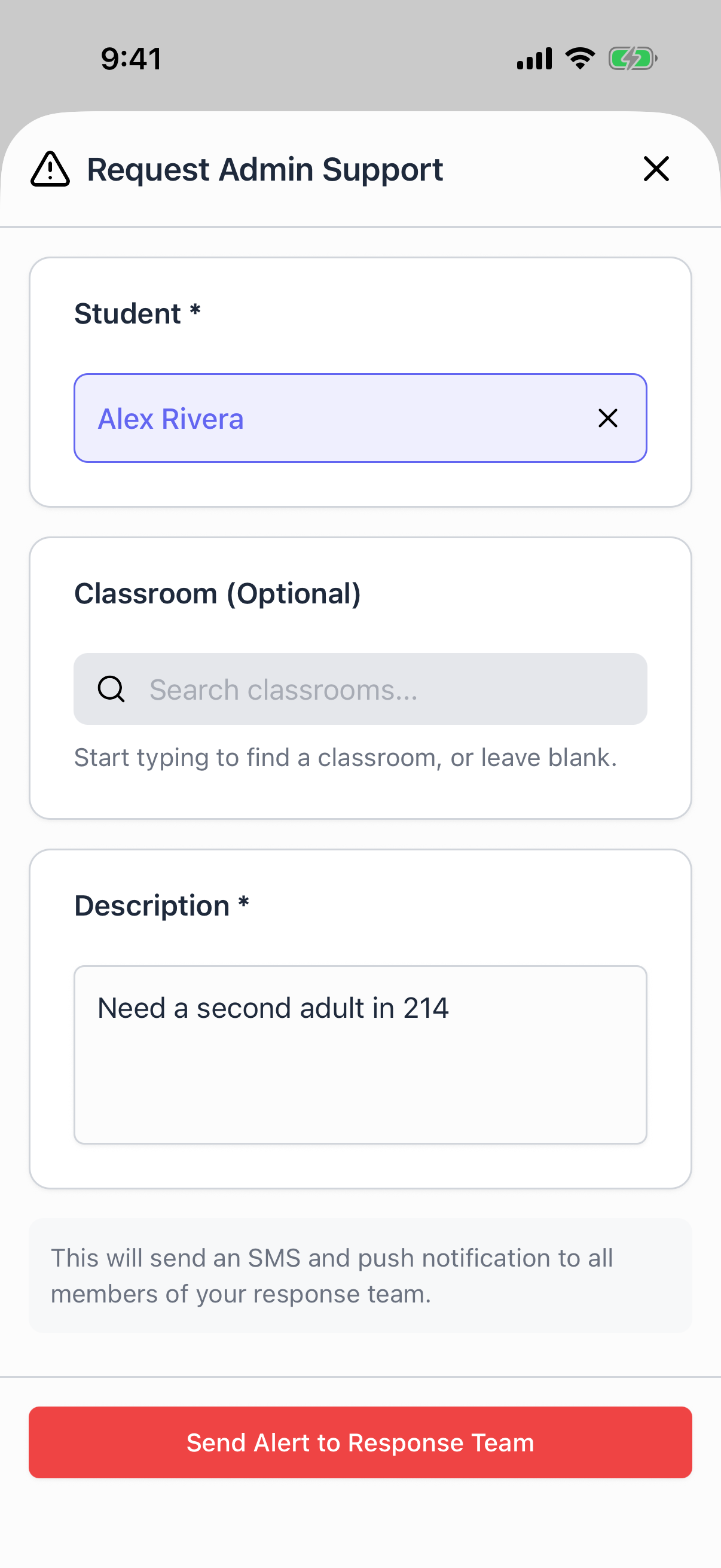
Keep the description short and concrete. "Escalating in the hall outside 214, need a second adult" is more useful than a paragraph.
While writing an ABC report
The first time you check a physical aggression behavior on a report, this sheet opens automatically. If you need help, send it. The alert is linked to the report you are writing, so whoever responds has the context.
If you do not need help, close it. It will not open again on that report.
What happens after you send
Alerts move through three states, and everyone can see where things stand.
| State | Means |
|---|---|
| Pending Response | Sent, nobody has picked it up yet |
| Acknowledged | Somebody has seen it and is responding |
| Resolved | It has been handled |
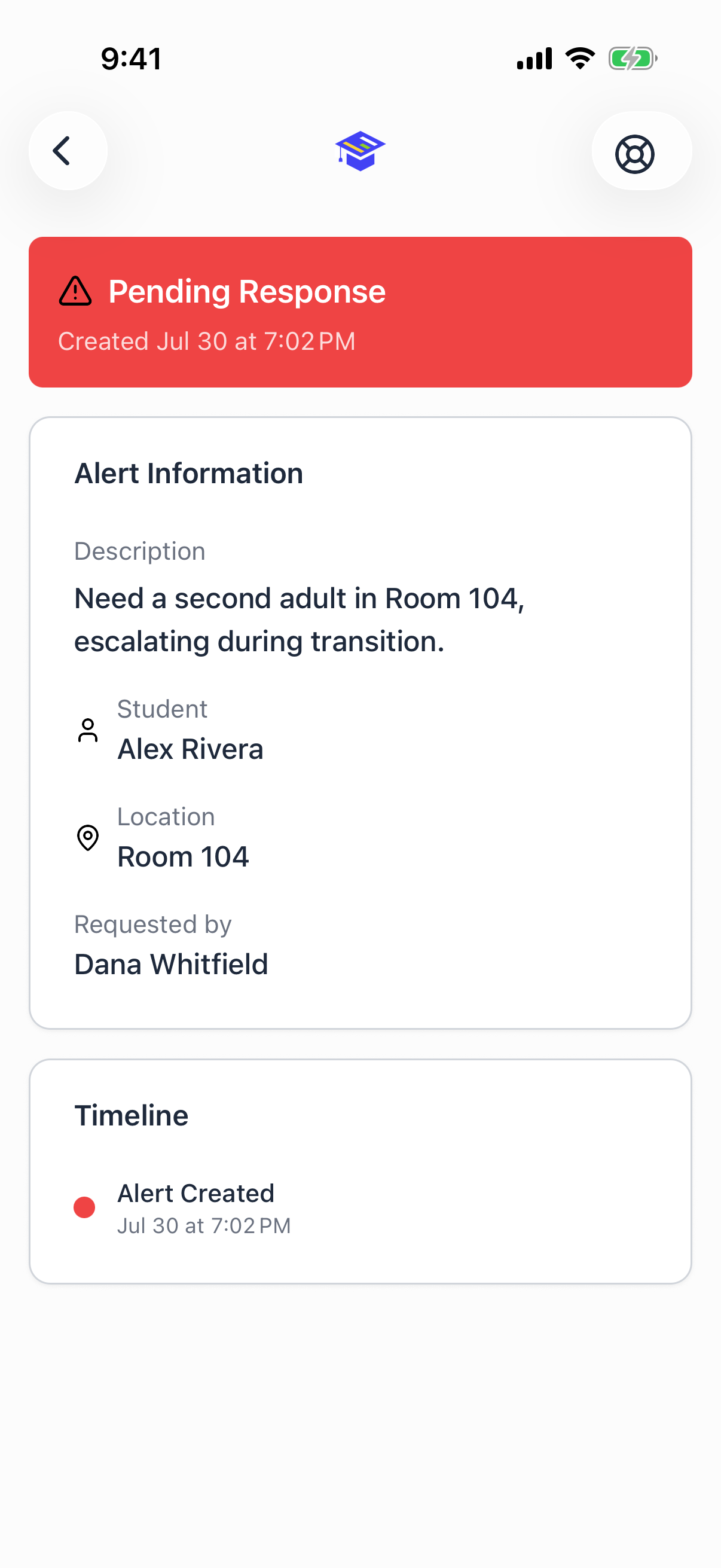
The alert detail screen shows a colored status banner at the top, the full description, and a timeline of who responded and when. Times display as relative ("5m ago") so you can see at a glance how long something has been waiting.
Finding alerts
The Admin Alerts card sits at the top of the home screen. When something is waiting for a response, it turns red and shows how many.
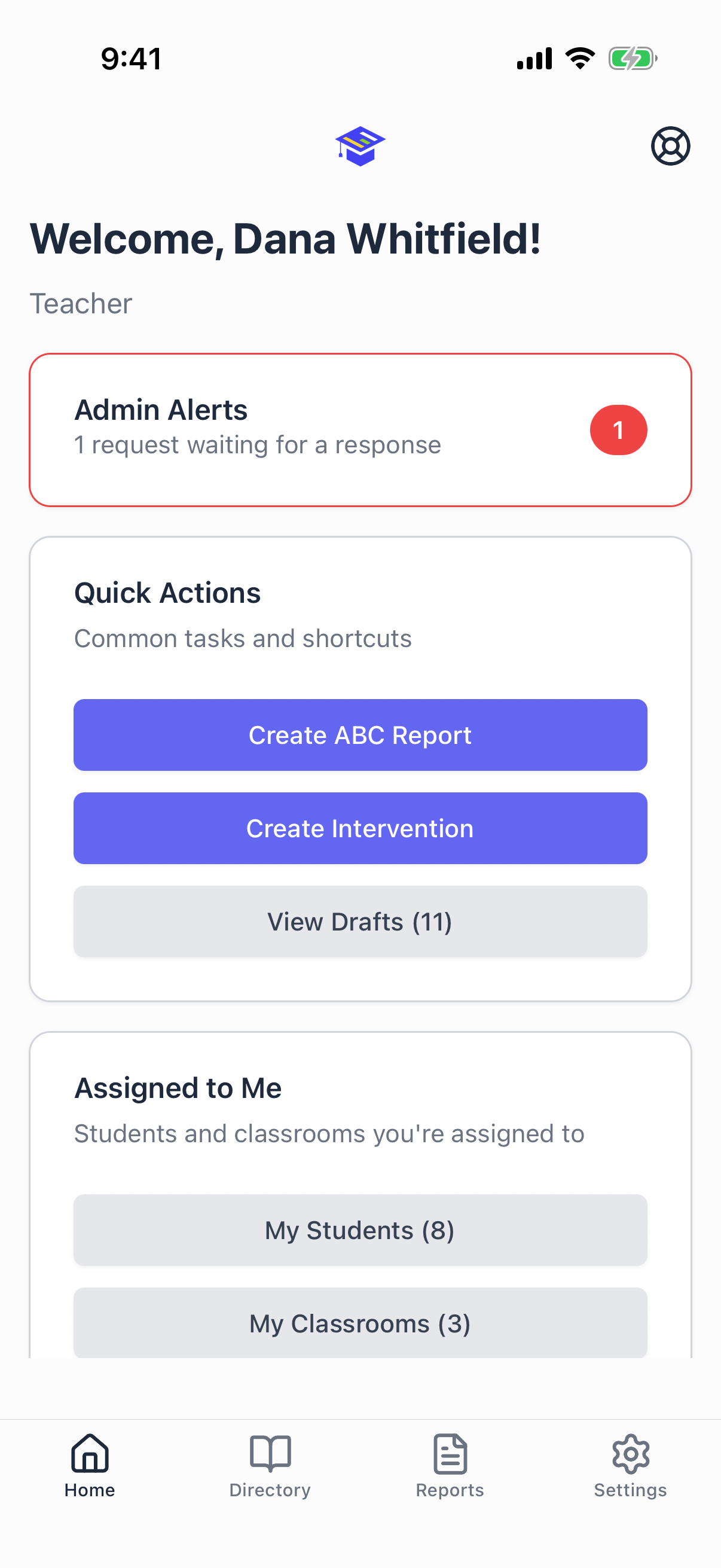
Tap it to open the alerts list, which has two tabs:
- Pending, with a count badge, for anything still waiting
- All, for the recent history at your school
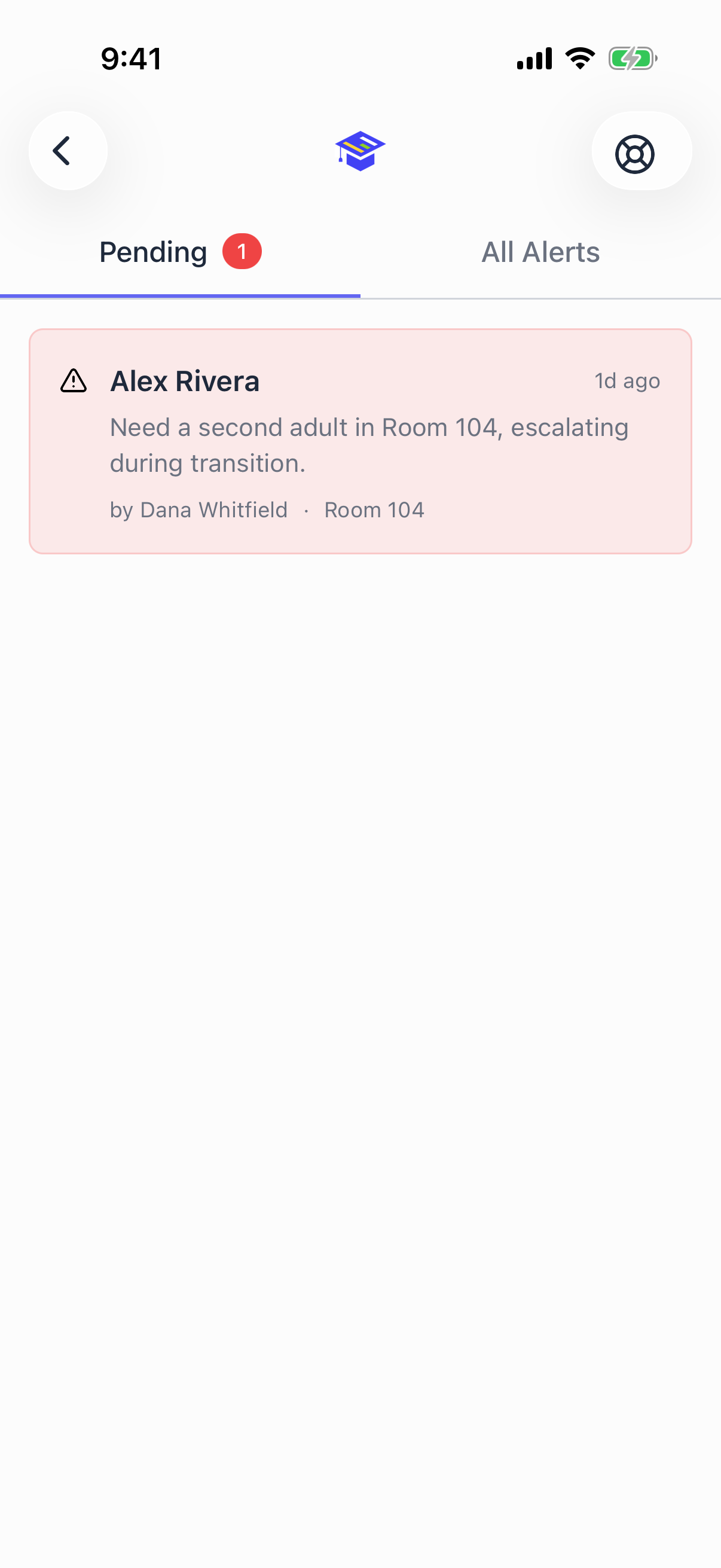
Tap any row to open the full alert.
Responding to an alert
If you are on someone's response team:
- Tap the push notification, which takes you straight into the alert. If you missed the notification, open the alerts list from the home screen instead.
- Read what is happening, then tap Acknowledge. That tells the teacher help is coming.
- Once it is handled, tap Resolve.
Acknowledging matters. A request for help that sits at Pending with nobody visibly on it is the situation this feature exists to prevent.
Worth building the habit of glancing at the Admin Alerts card when you pick up your phone. A red card means somebody is still waiting.
Common questions
Can I send an alert without a response team? No. Set one up first. It takes thirty seconds and the button offers to take you there.
Does the whole school see my alert? No. Only the people on your response team are notified.
What if nobody responds? The alert stays Pending and visible. Escalate the way you normally would in your building. SPEDup notifies, it does not guarantee anyone is holding their phone.
Can I cancel an alert? There is no cancel. Once the situation is over, have a responder resolve it so the record is accurate.