
A SPEDup account on its own does not do much. Until you are attached to a school, you have no students, no classrooms, and nothing to document. This step connects you.
First, check whether you were invited
If an administrator at your school invited you by email before you signed up, you are already attached to your school and your roles are already set. Sign in and you land straight on the home screen with no setup at all.
If that happened, skip the rest of this page.
Otherwise, you need a school code
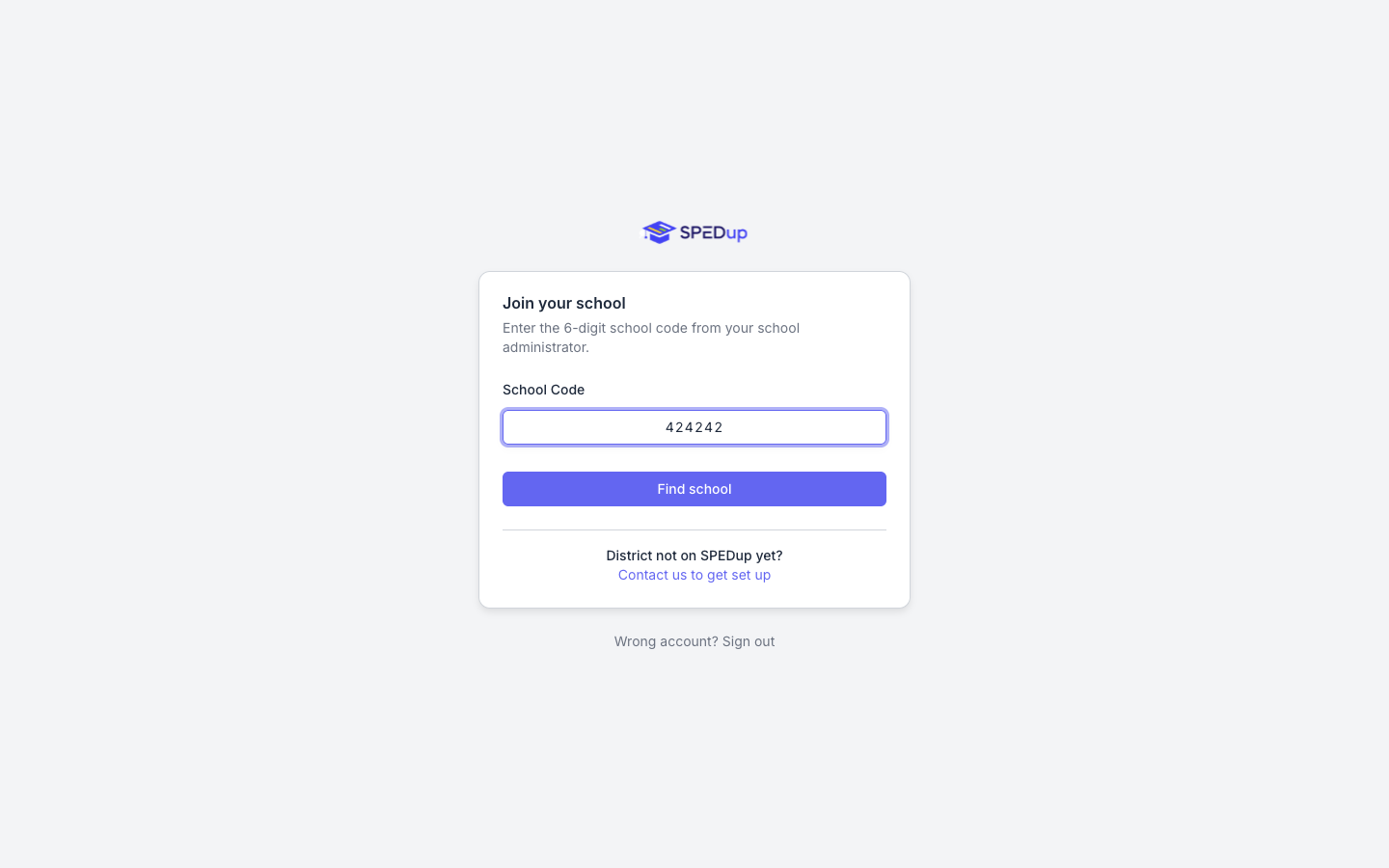
A 6 digit school code. Your school administrator has it. If you do not know who that is, ask whoever asked you to start using SPEDup, or email support@spedupeducation.com.
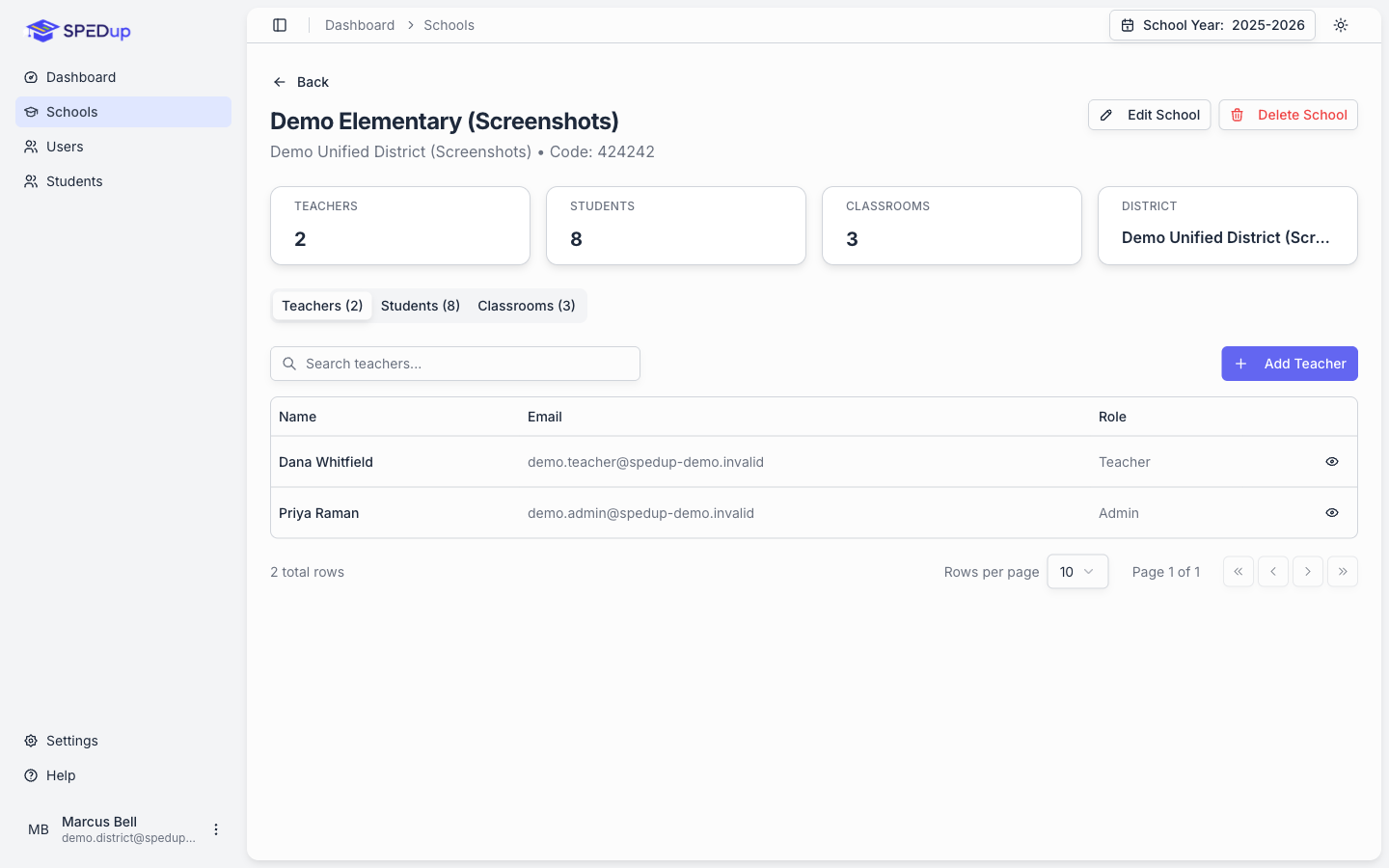
Administrators: your school code is on your school's profile page in the dashboard, next to the school name. See Setting up a school below.
Joining from the mobile app
The first time you sign in to a new account, the app walks you through this automatically.
- Tap Get Started on the welcome screen.
- Choose Join an Existing School.
- Type the 6 digit code and tap Find School.
- Check the school name and state that come back. If that is your building, tap Join This School. If it is not, tap Try a Different Code.
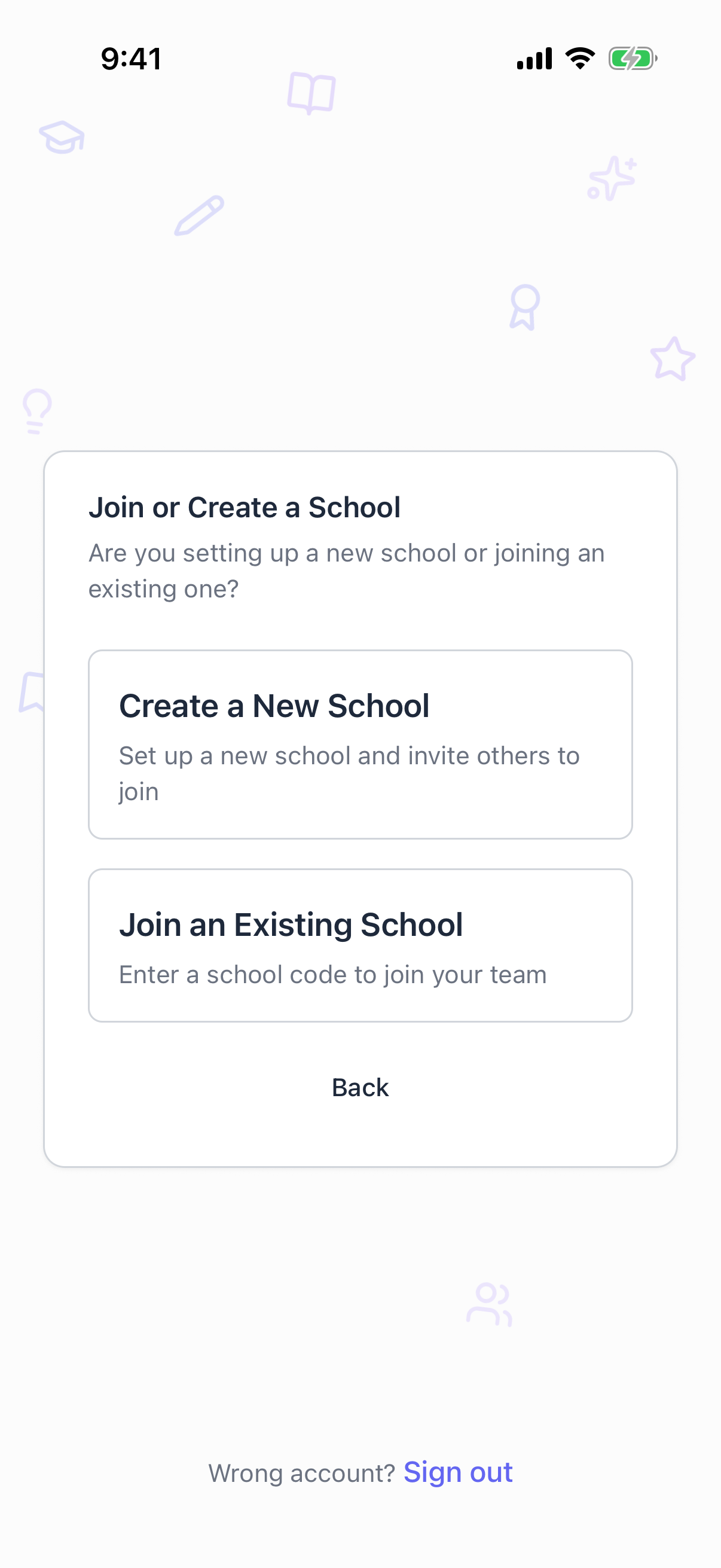
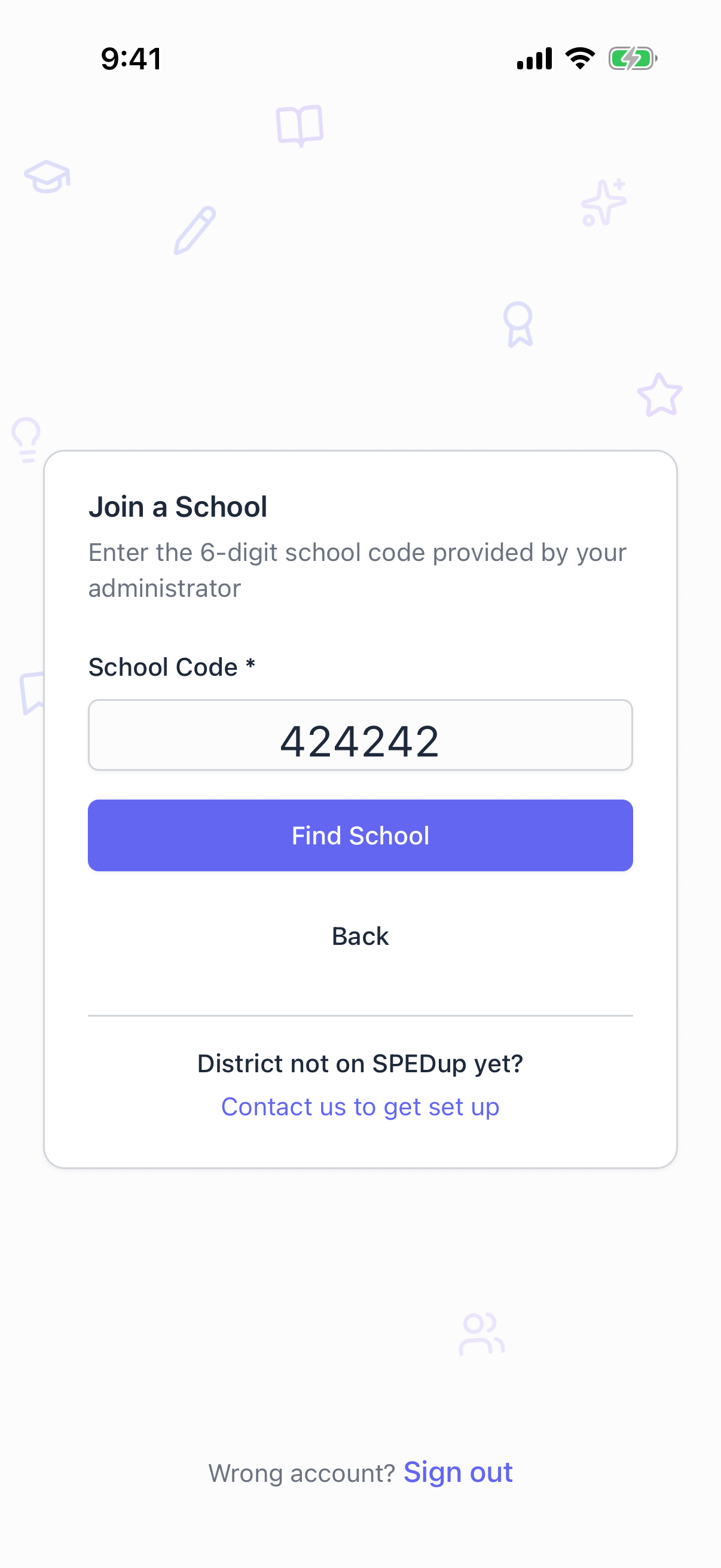
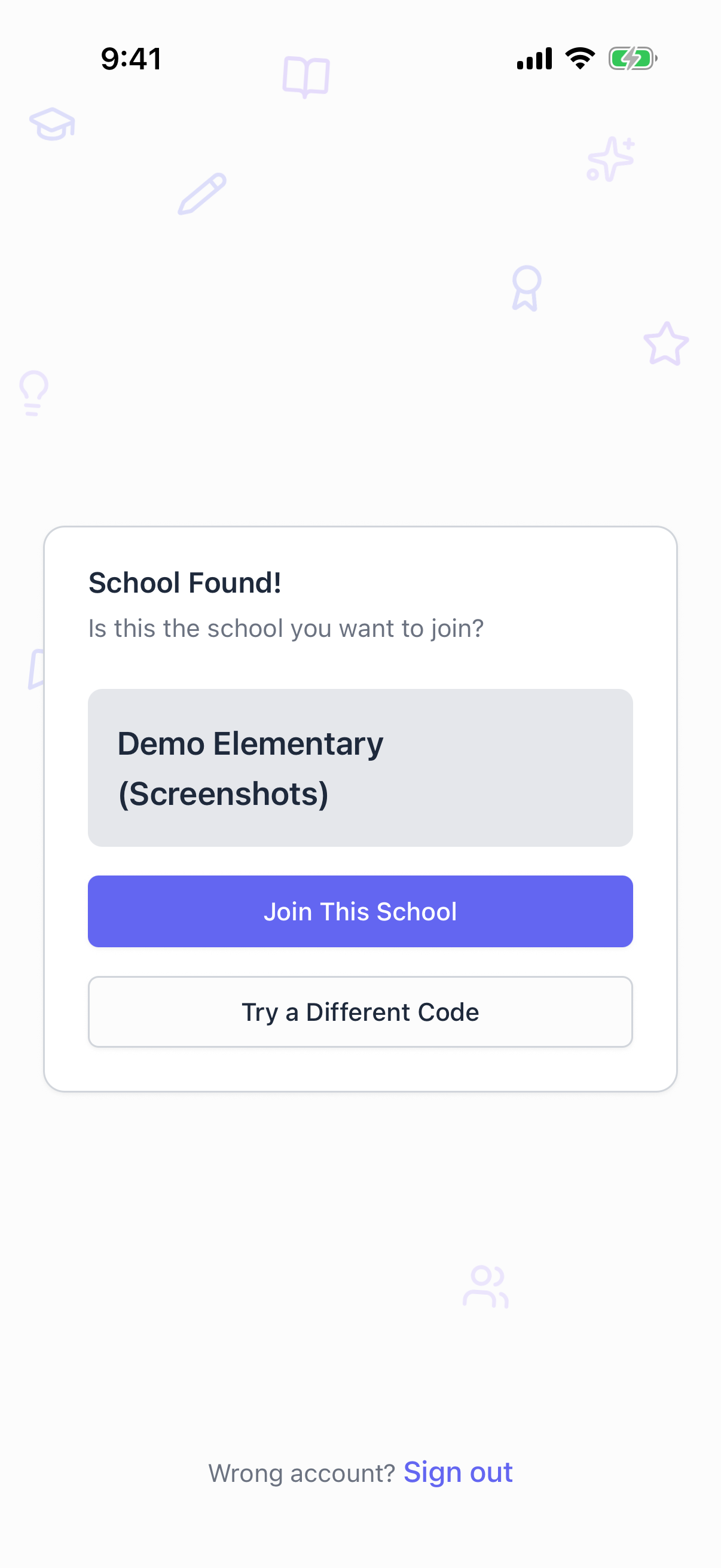
Adding your phone number
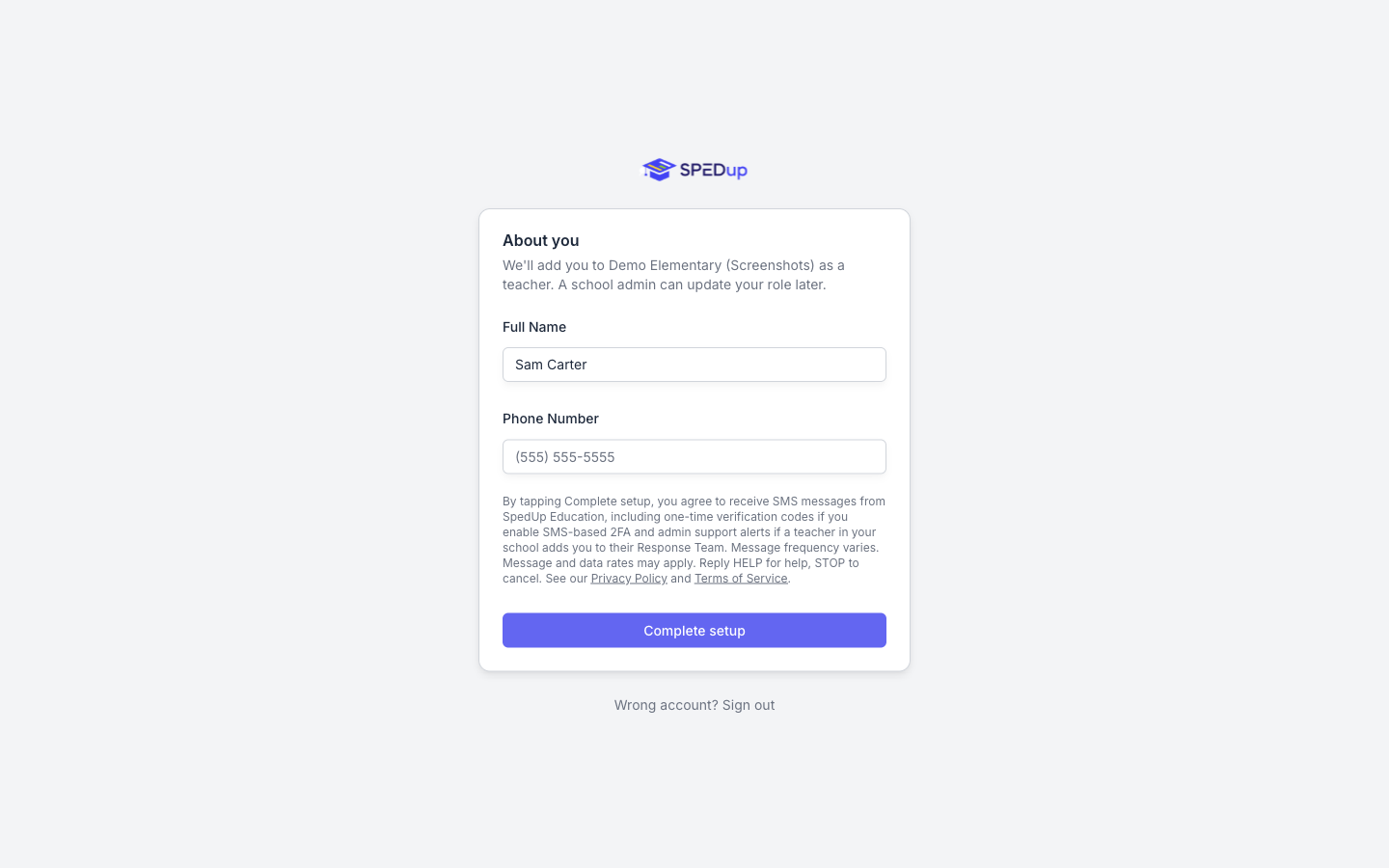
After you join, SPEDup offers to verify a phone number. This step is optional and you can tap Skip this step.
Add a number if you want either of these:
- Text message two factor authentication. A code is texted to you when you sign in. This is off unless you turn it on later in Settings.
- Admin support alerts. If a colleague adds you to their response team, you get a text when they request help.
Read the disclosure above the button before you tap it. Message and data rates apply, message frequency varies, and you can reply STOP to any message to opt out.
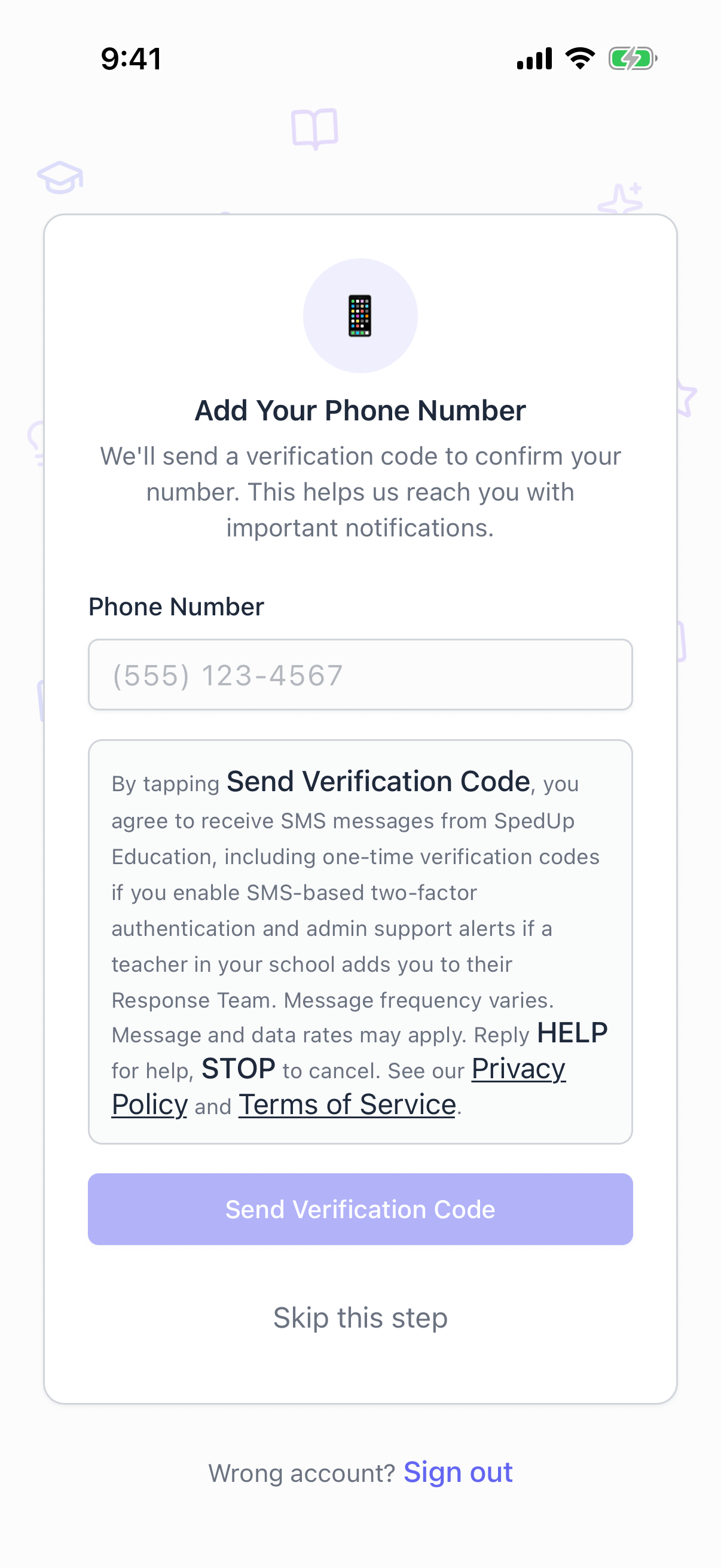
Entering the verification codeScreenshot coming soon
If the code does not arrive, tap Resend code. If it still does not arrive, tap Different number and check the digits, or skip the step and add it later from Settings.
Joining from the dashboard
The dashboard runs the same flow with slightly different steps.
- Sign in. If your account is not attached to a school yet, you land on the join screen automatically.
- Enter the 6 digit code and click Find school.
- Confirm the school name and click Yes, continue.
- Enter your full name and phone number, then click Complete setup.
What role do I get?
Everyone who joins a school by code is added as a teacher. That is deliberate. A teacher can write, edit, and delete their own reports, look up any student in the building, view analytics for their assigned students, and request admin support.
If you were invited by email, you get whatever roles the administrator picked when they invited you, which can include administrator access from the start.
If you joined by code and need more than teacher, a school or district administrator has to grant it afterward. They do that from the dashboard, or from your staff profile in the mobile app. See People and roles.
You cannot change your own administrator flags. Nobody can, including administrators editing their own profile. This is a guardrail so a building cannot accidentally lock itself out.
"My district is not on SPEDup yet"
Both apps have a link for this on the school code screen. Tap or click Contact us to get set up and it opens an email addressed to our support team, prefilled with your name and email. Add your district and school name, and we will get in touch to provision it.
Do not invent a school code, and do not join a school that is not yours to see whether it works. Student records are visible to everyone attached to a school.
For administrators: setting up a new school
Schools are created from the dashboard by a district administrator.
- Go to Schools in the sidebar and click the create button.
- Enter the school name, pick the district, and enter the address if you have it.
- School Code is the 6 digit number your staff type in to join. Leave it blank and one is generated for you. Enter your own if you would rather pick it.
- Save. The confirmation message tells you the join code.
The code also lives on the school's profile page, next to the school name, so you can find it again when a new teacher asks.
Every school gets a code, whether or not you type one. If you enter a code that another school is already using, SPEDup tells you and asks for a different one, since duplicate codes would make both schools unreachable.
You can change a school's code later from Edit School. Anyone holding the old code will need the new one.