
Everything in SPEDup can come out as a PDF. There are three kinds of export, and picking the right one saves you a lot of clicking.
| I need | Use |
|---|---|
| One incident, in full detail | Single report export |
| The analysis for a student over a period | Data summary export |
| Every ABC report for a student over a period | Bulk ABC export |
A single report
Open any ABC or intervention report and click Download PDF.
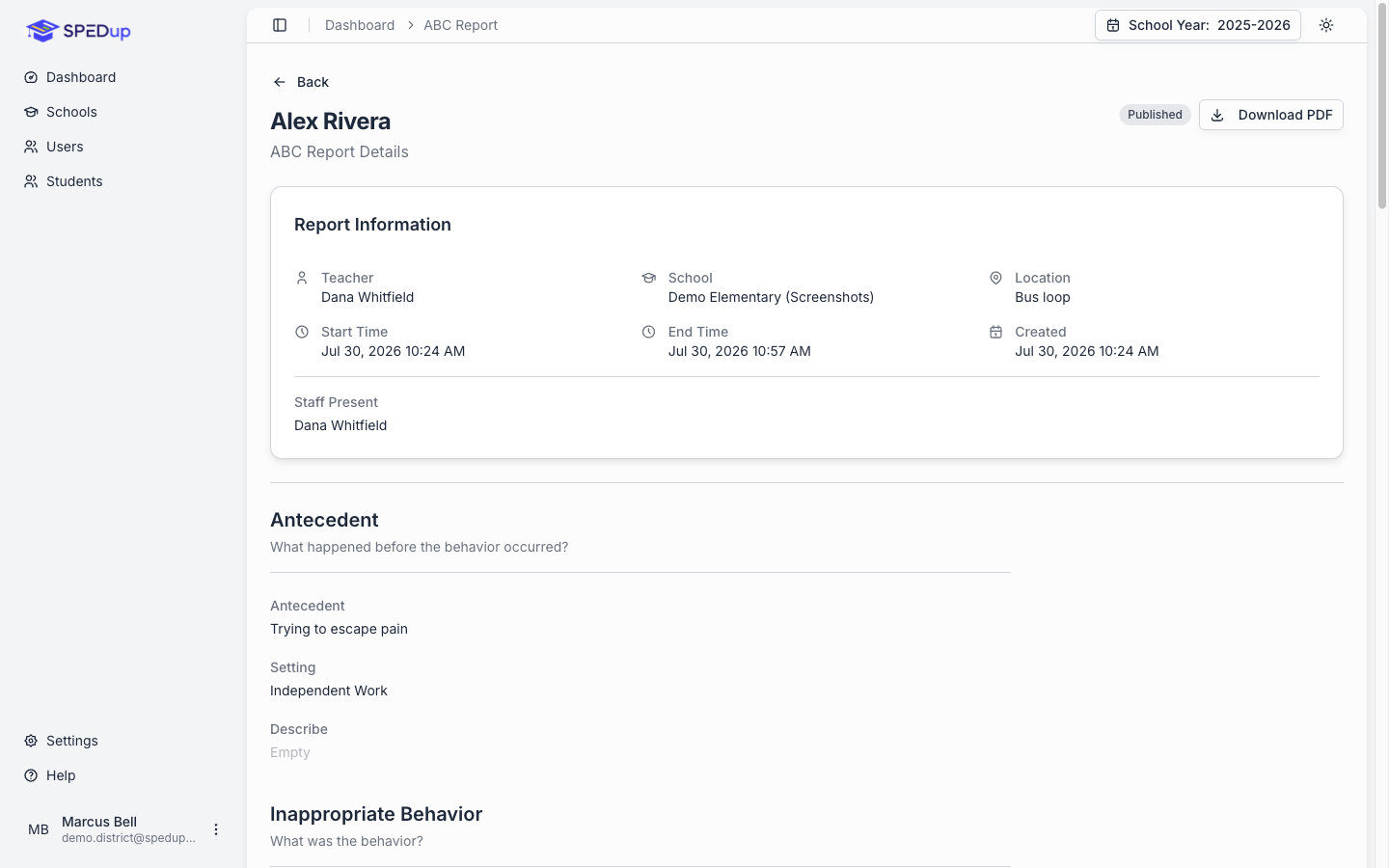
You get every field that was recorded, in sections, with the student, teacher, and school metadata and a confidentiality footer.
The PDF shows only what was actually filled in. A report with no restraint does not print an empty restraint section.
Use this when someone needs the detail of one specific incident: a manifestation determination, an incident review, a parent question about a particular day.
A data summary
Open a data summary and click Download PDF.
This is the export for meetings. It includes:
- The stat cards and totals
- Every chart, captured at twice normal resolution so it stays sharp when printed
- Student, teacher, and school metadata
- A confidentiality footer
Charts are rendered as they appear on screen, including phase change lines. Everything prints on white regardless of whether you are using dark mode.
See Data summaries.
Bulk ABC export
From a student's profile, ABC Reports tab, click Bulk Export ABCs.
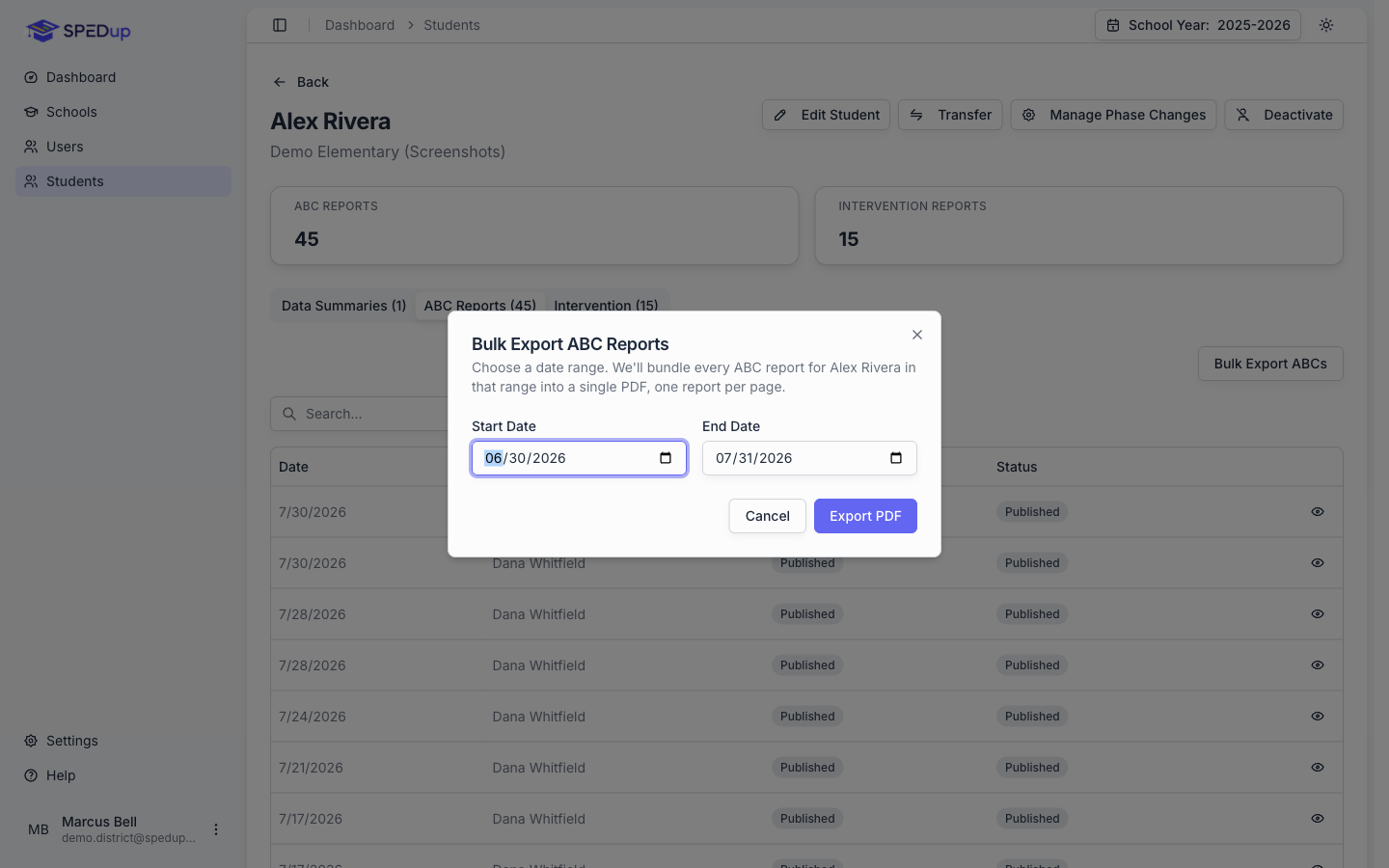
Pick a Start Date and an End Date and export. Every ABC report for that student in the range comes out in one PDF.
The layout is compact: checkbox sections collapse to only what was checked, and subsections print in multiple columns. Twenty reports come out as a manageable document rather than eighty pages.
Use this when a file needs the underlying reports rather than the analysis. Records requests, due process, transferring a student's documentation to another district.
From the mobile app
Two options on a student's profile, and they do different things.
Share Behavior Report (PDF) builds a PDF on the phone and opens the share sheet. Pick a time period and tick which sections to include. Use it when someone needs a file right now.
Generate Report builds a data summary over a date range and saves it to the student. It then opens on the dashboard with the full charts, where you can export the PDF above.
See Student analytics.
What is in every PDF
- Student name
- Teacher name
- School name
- The date range or incident date
- A confidentiality footer
These are student records. Handle the files the way your district handles anything else with a student's name on it. Emailing a PDF outside your district is the same decision as emailing anything else from the student's file.
Practical notes
Generate the summary before you export it. The PDF is built from a saved data summary, so create the summary for your date range first, then download.
Check the date range on the PDF. It prints in the header. If someone questions a number, the range is the first thing to confirm.
Regenerate if reports changed. A data summary is a snapshot from when it was generated. If reports were edited or added afterward, generate a fresh one rather than reusing the old PDF.