
The Directory tab holds everyone and everything at your school, split into three lists.
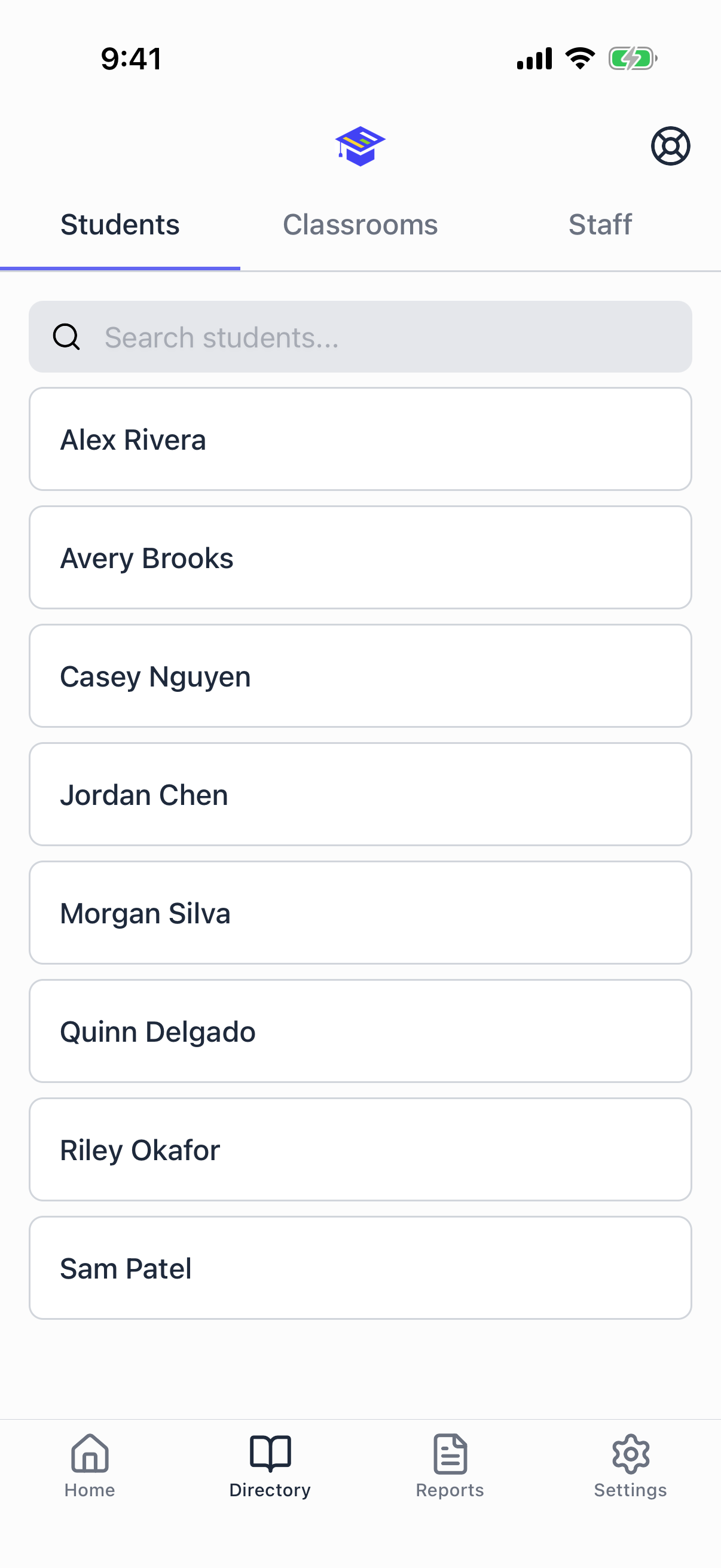
Every list has search. Start typing and it filters as you go.
Who can change what
Teachers can view the whole directory and open any record. Creating, editing, and deactivating students, classrooms, and staff is limited to administrators and district administrators.
If you do not see an add button or an edit option, that is why. Ask an administrator in your building.
Students
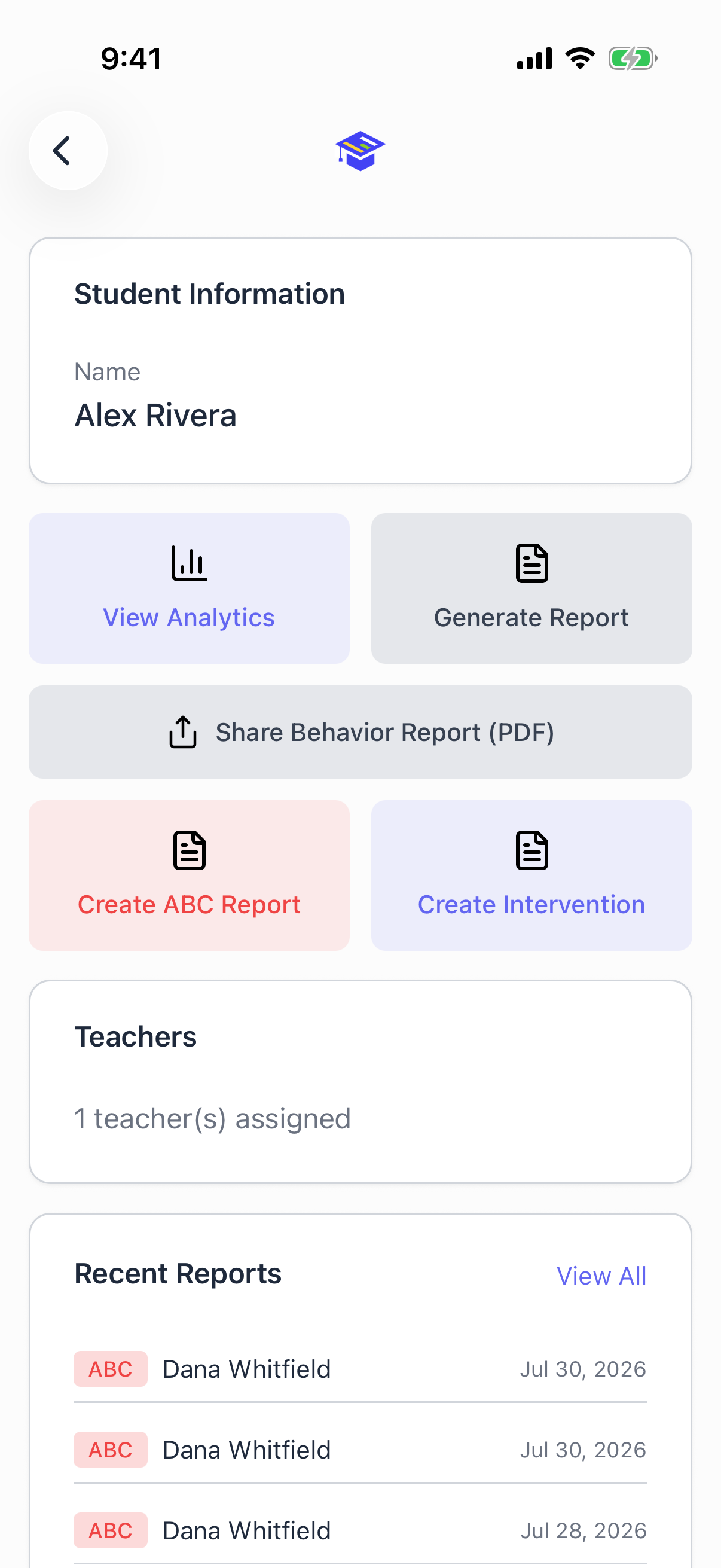
Tap a student to open their profile. From there:
- View Analytics. Behavior patterns for this student. See Student analytics.
- Generate Report. Build a data summary over a date range without leaving the app.
- Share Behavior Report (PDF). Build a PDF and send it through your share sheet.
- Create ABC Report and Create Intervention. Both start a report with this student already selected.
- Teachers. Which staff are assigned to this student. Administrators can change this with Manage Teachers.
- Recent Reports. The latest reports for this student, with View All for the full history.
Adding a student (administrators): Directory, Students, then the add button. Enter the student's name. That is the only required field.
Editing a student: open the profile and use Edit in the header.
Deactivating a student: open the profile and tap Deactivate Student. This is a soft delete. The student comes off active rosters and pickers, but every report they appear on stays intact and readable. Nothing is destroyed.
Classrooms
Tap a classroom to see who is in it and who teaches it. Any room can be added, general education or special education. Rooms marked as special education carry a SPED label in the list, which is a filing detail rather than a restriction.
Adding a classroom (administrators): Directory, Classrooms, then the add button. Enter a name. The Special Education (SPED) switch is optional and only labels the room.
Assigning students to a classroom: open the classroom, then manage its student list.
Assigning teachers to a classroom: open the classroom, then manage its teacher list.
Deactivated students and staff do not appear in these pickers, so old records do not clutter your rosters.
Staff
The staff list shows each person's name, their roles, and their email address.
Inviting a staff member (administrators): Directory, Staff, then the add button. Enter their school email address and choose their roles: Admin, Teacher, or Itinerant. At least one role is required.
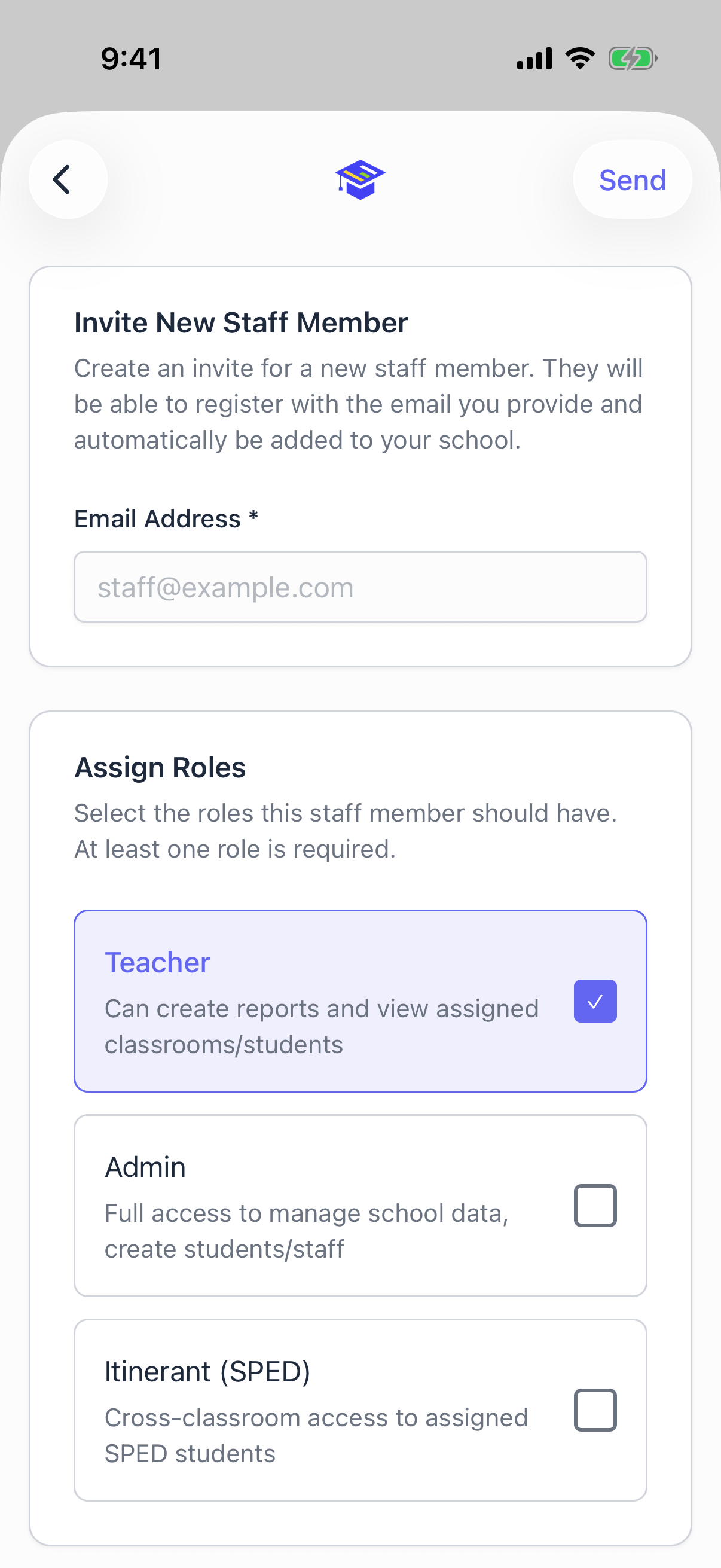
When that person creates their account with the same email address, they are attached to your school automatically with the roles you picked. They do not need a school code and there is nothing for you to set up afterward.
Two things worth knowing:
- The email address has to match the one they sign in with. An invite for a personal address does nothing when they sign in with their district account.
- It works on either app, and with ClassLink or an email and password.
If someone joins with the school code instead of being invited, they land as a teacher and you set their roles afterward.
Changing someone's roles: open their staff profile and use the role switches. Administrators and district administrators can do this for anyone except themselves. Nobody can change their own administrator flags.
Deactivating a staff member: from their profile. Like students, this is a soft delete. Their reports remain.
My Classrooms and My Students
Two filtered views, both reachable from the Assigned to Me card on the home screen.
- My Classrooms shows only the rooms you teach
- My Students shows only the students you are assigned to
Being assigned to a student just means you are one of the people responsible for them. It is not tied to special education, and a student can have several staff assigned.
If either list is empty and you expect it not to be, an administrator has not made the assignment yet. Ask them to assign you from the classroom or from the student's profile.
These assignments matter beyond convenience. Your teacher dashboard on the web and your student analytics access are both scoped by them.
Switching schools
Itinerant staff and district administrators can move between buildings. Settings, then Switch School. The whole app re scopes to the school you pick, including the directory, reports, and alerts.