
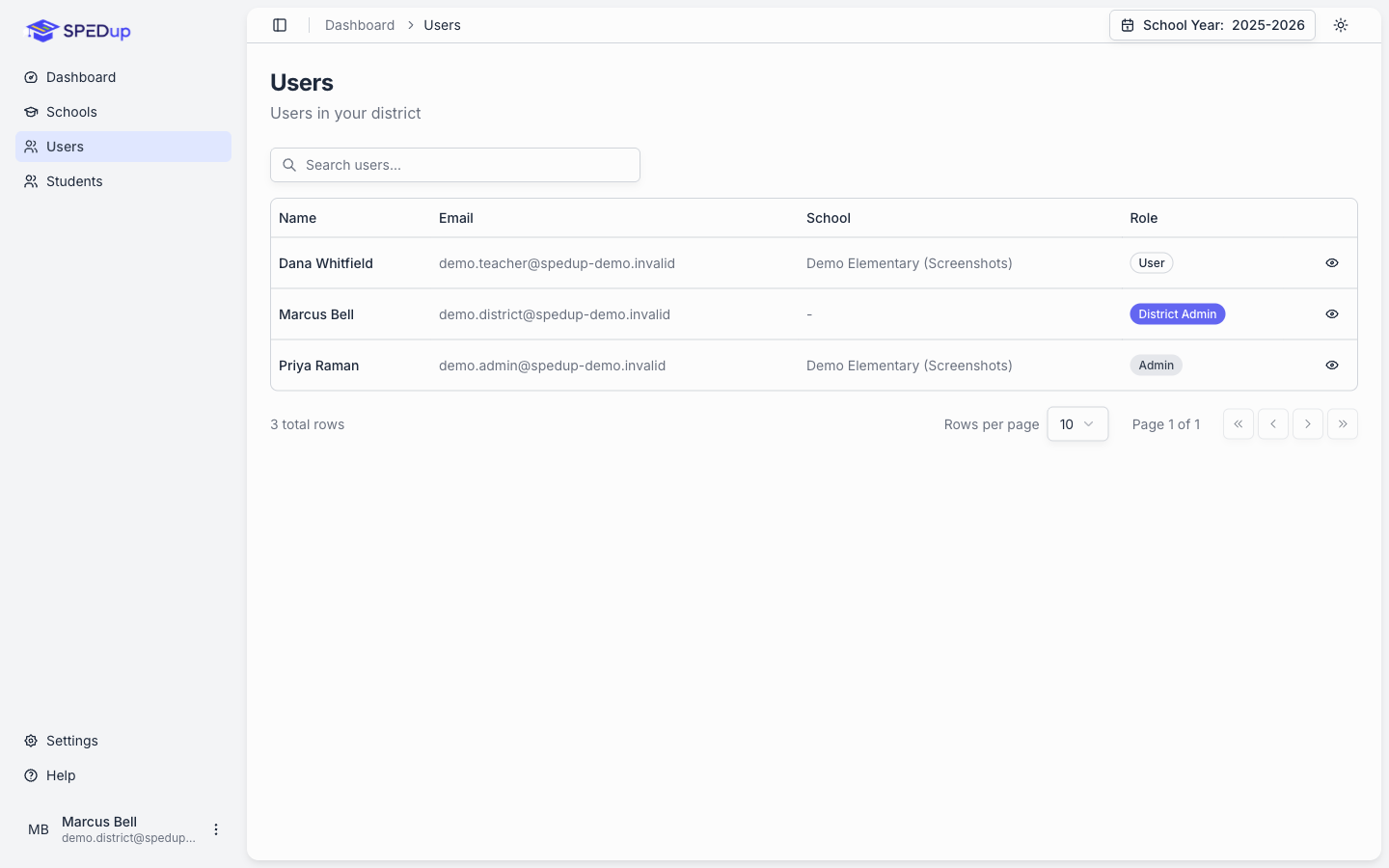
The Users page is where staff accounts live. What you can do here depends on your own role: district administrators see their district, school administrators see their building.
Adding a teacher to your school
Three ways, depending on how much you want to set up in advance.
Option 1: Invite them by email (recommended)
Best when you know someone's role before they sign up, or when you are onboarding a group.
- In the mobile app, go to Directory, Staff, then the add button.
- Enter their school email address and pick their roles: Admin, Teacher, or Itinerant.
- Send.
When that person creates their account with the same email address, they are attached to your school automatically with the roles you chose. No school code, no setup screen, and nothing for you to do afterward. They land on the home screen already able to work.
The invite applies whether they sign up on their phone or on the dashboard, and whether they use ClassLink or an email and password. The email address has to match, so use the address they will actually sign in with.
Option 2: Give them the school code
Best for a building where everyone is a teacher and you would rather not enter addresses one at a time.
- Send them your 6 digit school code. It is in the header of your school's profile page, under My School in the sidebar, and clicking it copies it. District administrators find it the same way, through Schools.
- They create an account and enter the code. See Join your school.
- They land as a teacher. If anyone needs more than that, set their roles afterward.
Option 3: Create the account for them
The Add Teacher button on the Users page creates the account and sets the password yourself.
Use it when someone cannot create their own account, or when you are setting up a demo. The other two options are better day to day, because the person controls their own password and ClassLink linking works without anything to reconcile.
Your own session is not affected when you create an account this way. You stay signed in as yourself.
Changing someone's roles
Open the user, then Actions, then Manage Settings. That opens the Edit User dialog.
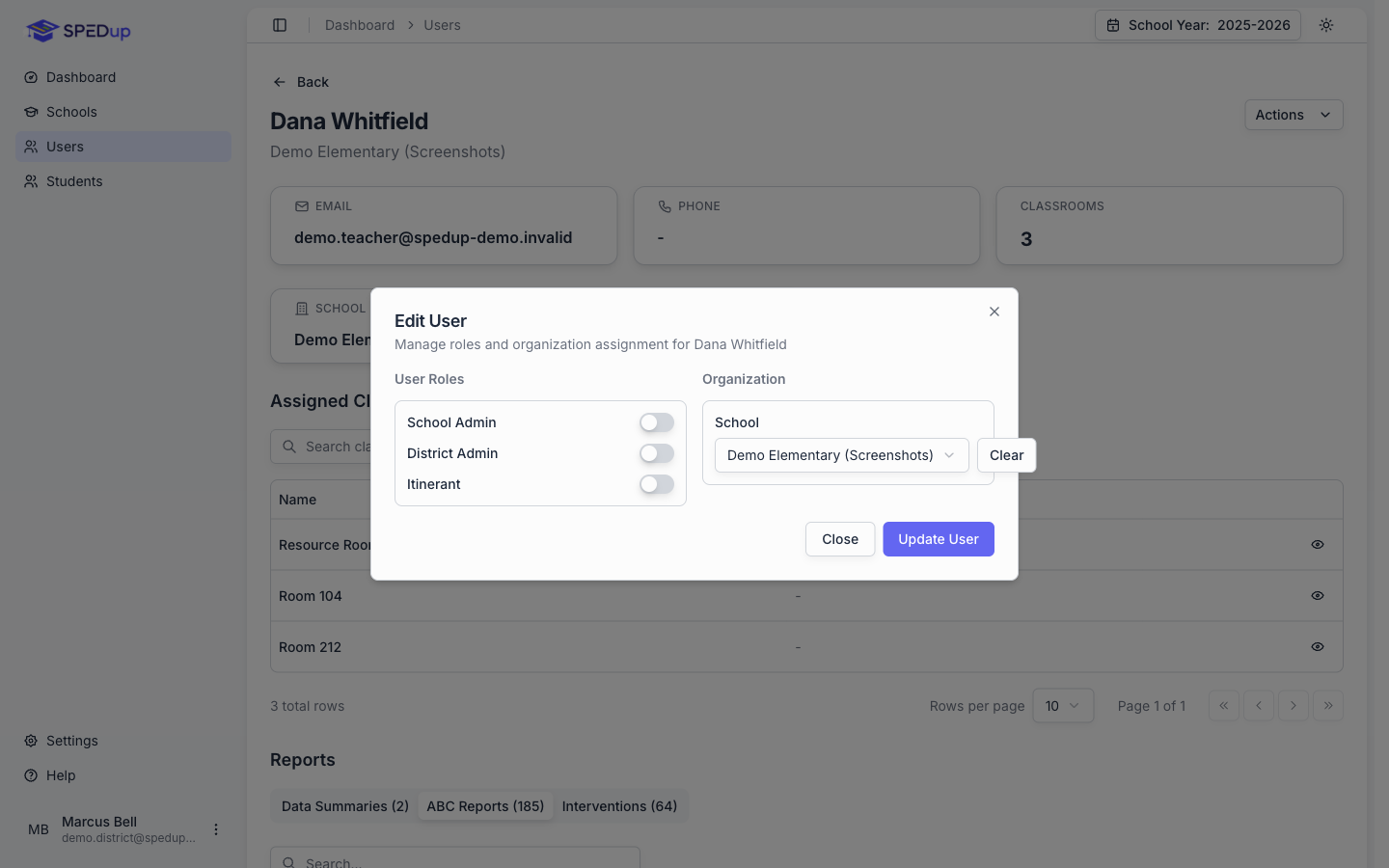
Roles are switches, and someone can hold more than one:
| Role | What it grants |
|---|---|
| School Admin | Full control of one building: students, classrooms, staff, reports, that school's blackout dates |
| District Admin | District wide access: schools, users, students, reports, blackout dates |
| Itinerant | Travels between buildings and can switch schools |
Organization assignment is on the right. District administrators are assigned to a district. Everyone else is assigned to a school. Turning on District Admin clears the school assignment, because a district administrator works across all of them.
Phone number and SMS verification are also here.
The self edit guardrail
You cannot turn off your own School Admin or District Admin switch, and neither can any other administrator editing their own account. This exists so a building cannot accidentally lock itself out of its own data.
If you genuinely need your own role changed, have another administrator do it.
About the district itinerant role
New in 2.0. Set the district, leave the school empty, turn on Itinerant, leave District Admin off.
That person travels between schools, reads data district wide, creates reports, and records phase changes. They cannot edit teachers, students, schools, or users. It fits behavior specialists and consultants who need visibility everywhere and edit rights nowhere.
Transferring a teacher to another school
On the user's profile, use Transfer. Enter the 6 digit code of the destination school. The teacher's school assignment moves; their reports stay attached to the school they were filed at, which is what you want for historical accuracy.
Available to district administrators and school administrators.
Deactivating a staff member
Use Deactivate on their profile. This is a soft delete:
- They can no longer sign in
- They come off classroom rosters and staff pickers
- Every report they filed stays intact, readable, and attributed to them
Use this when someone leaves. Do not delete the person and do not reuse their account for the person replacing them.
Reactivate puts them back if they return, with their history intact.
Resetting a password
From a user's profile, an administrator can trigger a password reset. The user gets an email with a reset link.
If they sign in with ClassLink, SPEDup does not hold their password. Send them to your district's own reset process instead.
Who can do what
The full breakdown is in Roles and permissions. The short version:
| District admin | District itinerant | School admin | Teacher | |
|---|---|---|---|---|
| Manage schools | Own district | View only | No | No |
| Manage users | Own district | View only | Own school | No |
| Manage students | Yes | View only | Own school | No |
| Manage classrooms | No | No | Own school | No |
| View reports | District wide | District wide | Own school | Own school |
| Generate data summaries | Yes | Yes | Yes | Yes |
| Record phase changes | Yes | Yes | Yes | Yes |
Phase changes are open to everyone on purpose. A phase change records intervention history, and the person running the intervention is the one who knows when it started. Gating that behind administrator permissions would mean the people with the knowledge cannot write it down.