
The dashboard runs in a web browser. Sign in with the same account you use on your phone.
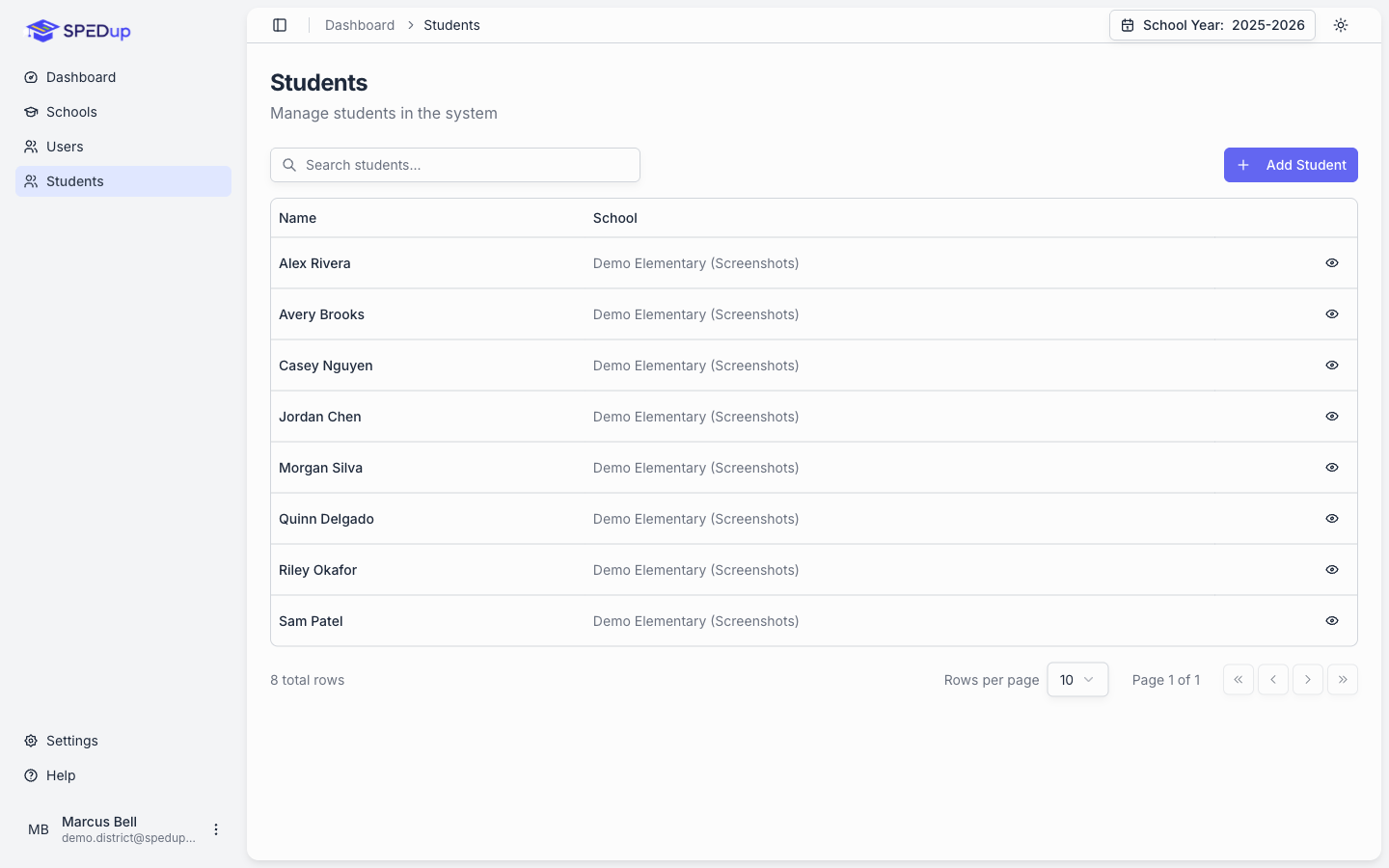
The sidebar
Navigation is on the left, and it shows you only what your role can use. If a page below is not in your sidebar, you do not have access to it.
| Item | Who sees it |
|---|---|
| Dashboard | Everyone |
| My School | School administrators, and it opens their own building |
| Schools | District administrators |
| Users | Everyone |
| Students | District administrators and school users |
| Classrooms | School users |
| Reports | School users, and district itinerant staff |
| Settings | Everyone |
| Help | Everyone |
Click the logo at the top to collapse the sidebar down to icons when you need the screen space. Your account menu is at the bottom.
Full details in Roles and permissions.
The header
Breadcrumbs on the left show where you are and let you click back up a level.
The school year selector on the right controls the window every number on the page is calculated over.
The theme toggle switches between light, dark, and following your system.
The school year selector
This is the single most important control on the dashboard, and the one people forget about.
A school year runs August 1 to July 31. The selector offers the last five school years plus All Time. It defaults to the current year and remembers your choice between visits.
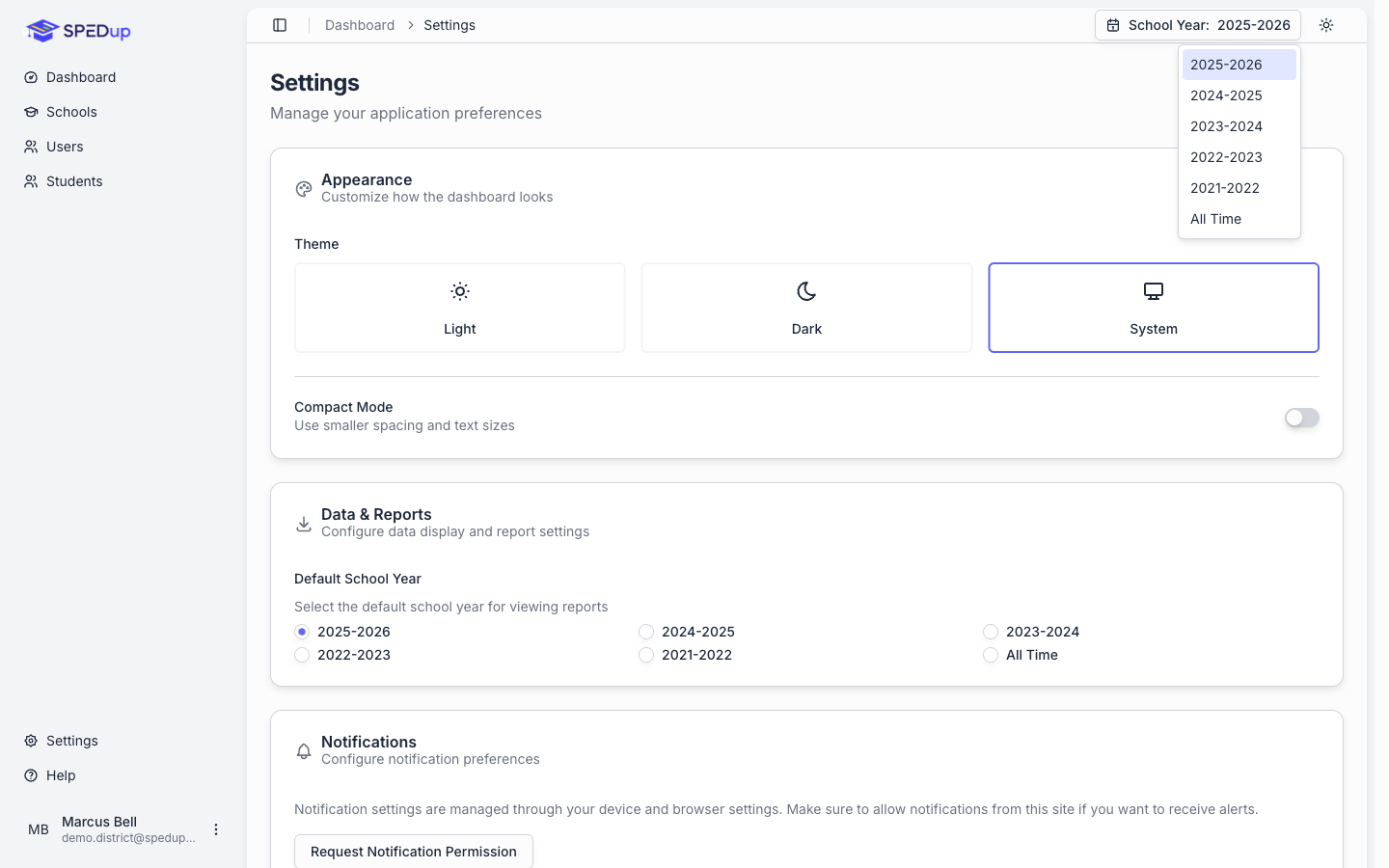
Changing it re scopes every card, every chart, and every list on the page.
If a number looks wrong, check this first. In September, a selector still sitting on last year will make it look like nobody is documenting anything.
You can set your preferred default in Settings.
Lists and tables
Every list page in the dashboard works the same way.
- Search at the top filters as you type
- Pagination at the bottom, with a control for how many rows to show
- Column headers sort
- A create button in the top right, when your role can create that kind of record
- An actions column on the right of each row
While data is loading you see grey placeholder rows rather than an empty screen, so a slow query does not look like no results.
Copying values
Many values on detail pages can be copied by clicking them: IDs, codes, staff names, school names. Useful when you are filling in a form somewhere else and do not want to retype a long identifier.
Destructive actions
Deleting a state, district, or school asks you to type a confirmation before it will proceed. That is deliberate. Deleting a district affects every school and every user under it.
Deactivating a student or a staff member is different. It is a soft delete: the record comes off active rosters, but all of their reports stay intact and readable. You can reactivate later.
Error recovery
If a page fails to load, you get an error message with a way to retry rather than a blank screen. If retrying does not help, note what page you were on and email support.
Help
The Help page in the sidebar has support contact details. When you write in, include your name, your school, what you were doing, and a screenshot.