
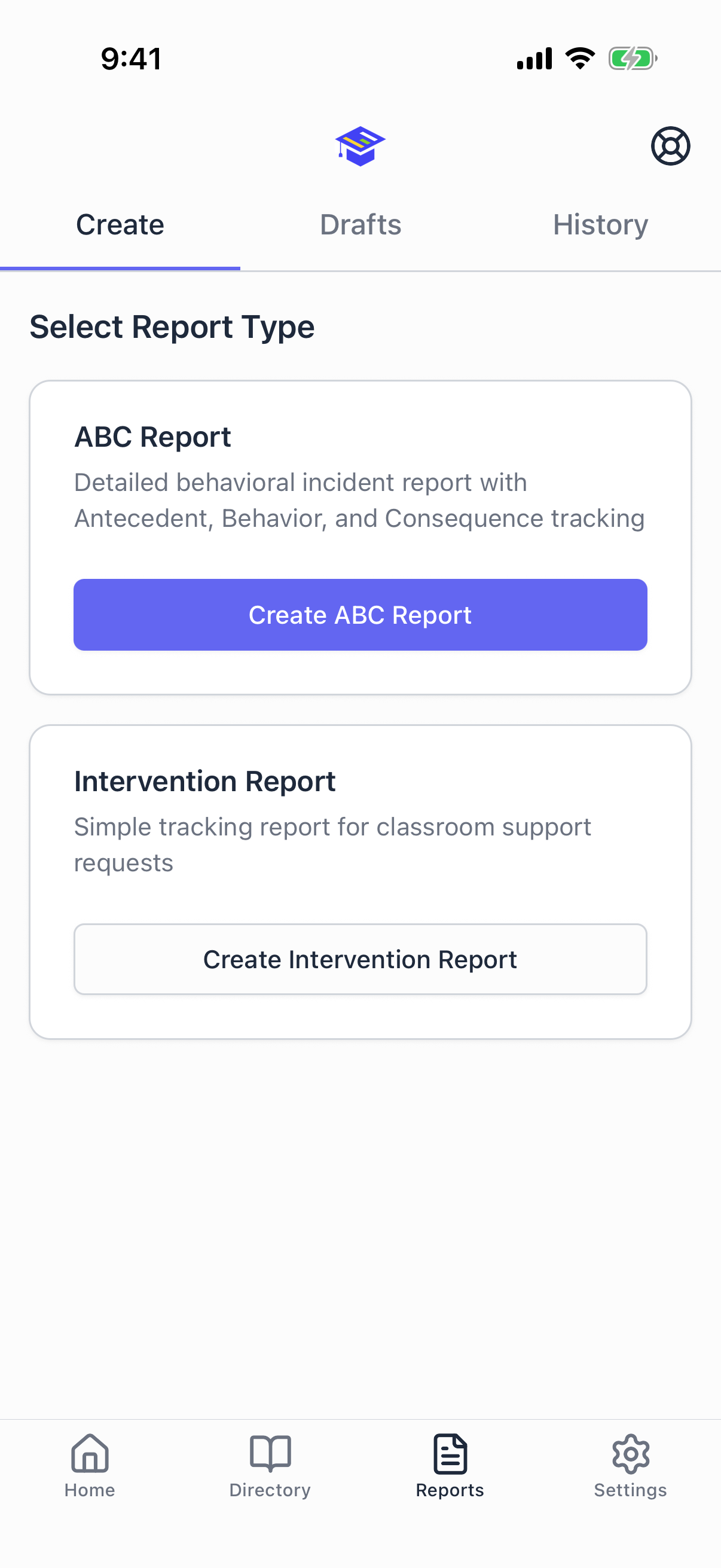
The ABC report is the core of SPEDup. Antecedent, Behavior, Consequence. What led up to it, what the student did, and how staff responded.
In version 2.0 it is a six step wizard instead of one long form. Each step validates before you move on, so you find out about a missing field on step three rather than after you have filled in everything.
This page covers the mobile app. The same six step wizard is on the dashboard, if you would rather write it up at a keyboard: see Writing reports from the dashboard.
For a field by field breakdown, see the ABC report field reference.
Starting a report
Three ways in, and they all land in the same place:
- Reports tab, Create, then ABC Report
- Home tab, Create ABC Report under Quick Actions
- A student's profile, then Create ABC Report, which pre selects that student for you
Start the report while the incident is happening if you can. Picking the student is what creates the draft, and creating the draft is what captures the true start time. Everything after that saves as you go.
Step 1: Student and time
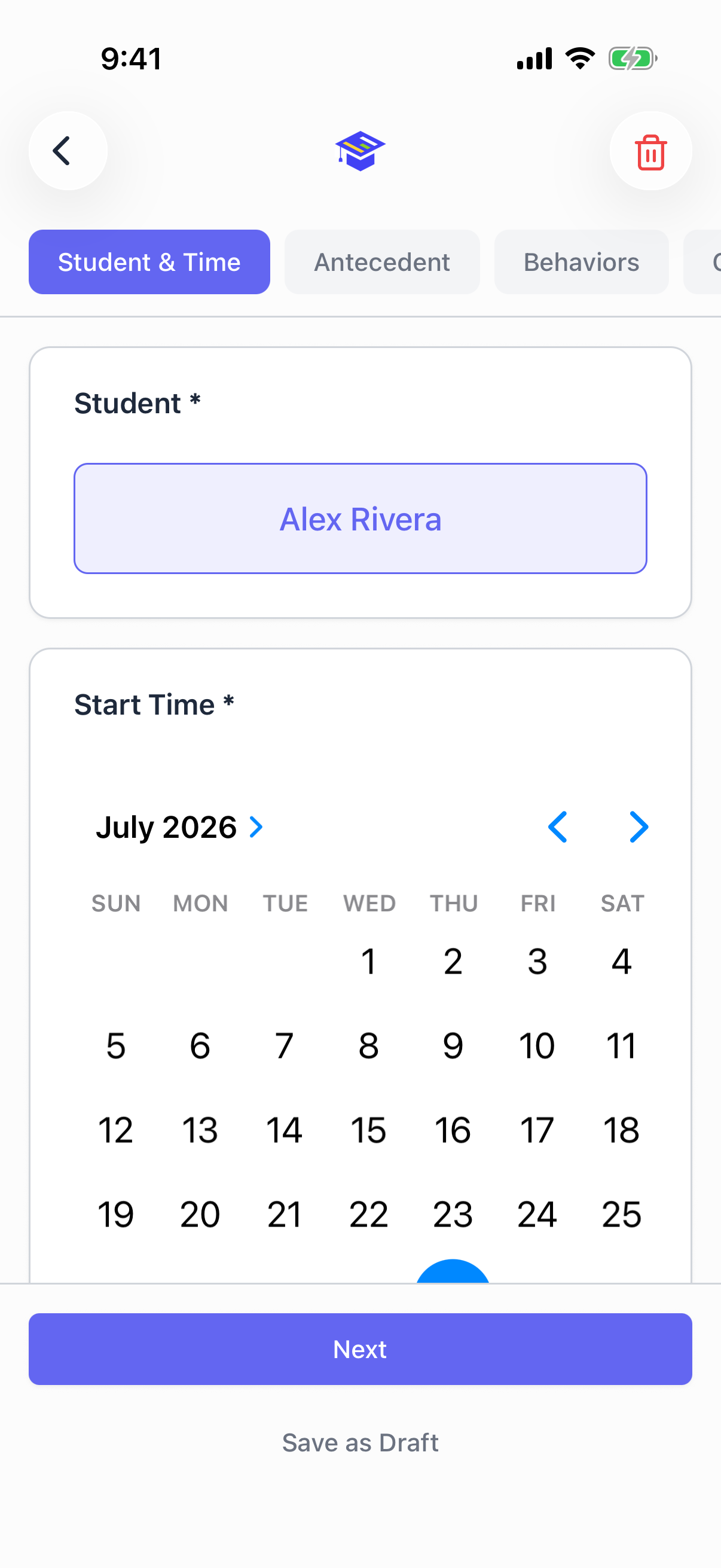
Student. Tap to open the picker and search by name. This is the only required field to create the draft.
Start time. Defaults to the moment you started the report. Change it if you are writing this up after the fact.
End time. This is the part worth understanding. The end time tracks itself while you work, and shows the running duration as it goes. If the incident is still unfolding, leave it alone and it stays accurate. Tap it once to set it yourself, and tap again to hand it back to the clock.
Location. Where it happened.
Campus staff present. Who else was there.
You cannot move past this step without a student. If the end time lands before the start time, or the report covers more than twelve hours, the app will tell you and hold you here.
Step 2: Antecedent
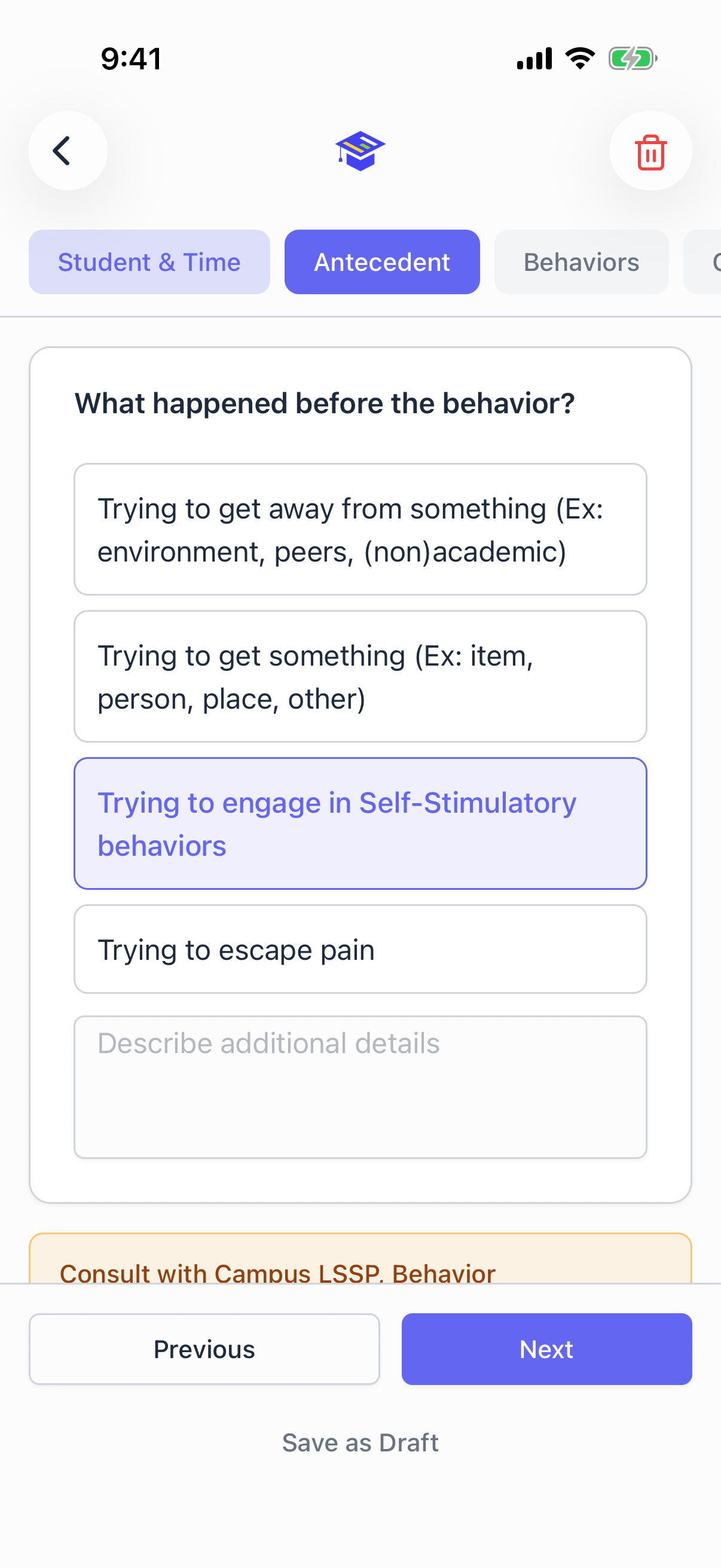
Pick the one that best describes the function of the behavior:
- Trying to get away from something (environment, peers, academic or non academic)
- Trying to get something (item, person, place, other)
- Trying to engage in self stimulatory behaviors
- Trying to escape pain
The setting, if it applies: Whole group, Small group, or Independent Work.
Notes, for anything the four options do not capture.
Two of these choices bring up a prompt when you pick them:
- Self stimulatory behaviors suggests consulting the campus LSSP, behavior interventionist, or OT
- Trying to escape pain suggests consulting the campus nurse and the parents
These are reminders, not requirements. They do not block you and they are not recorded on the report.
One antecedent is required to move on.
Step 3: Behaviors
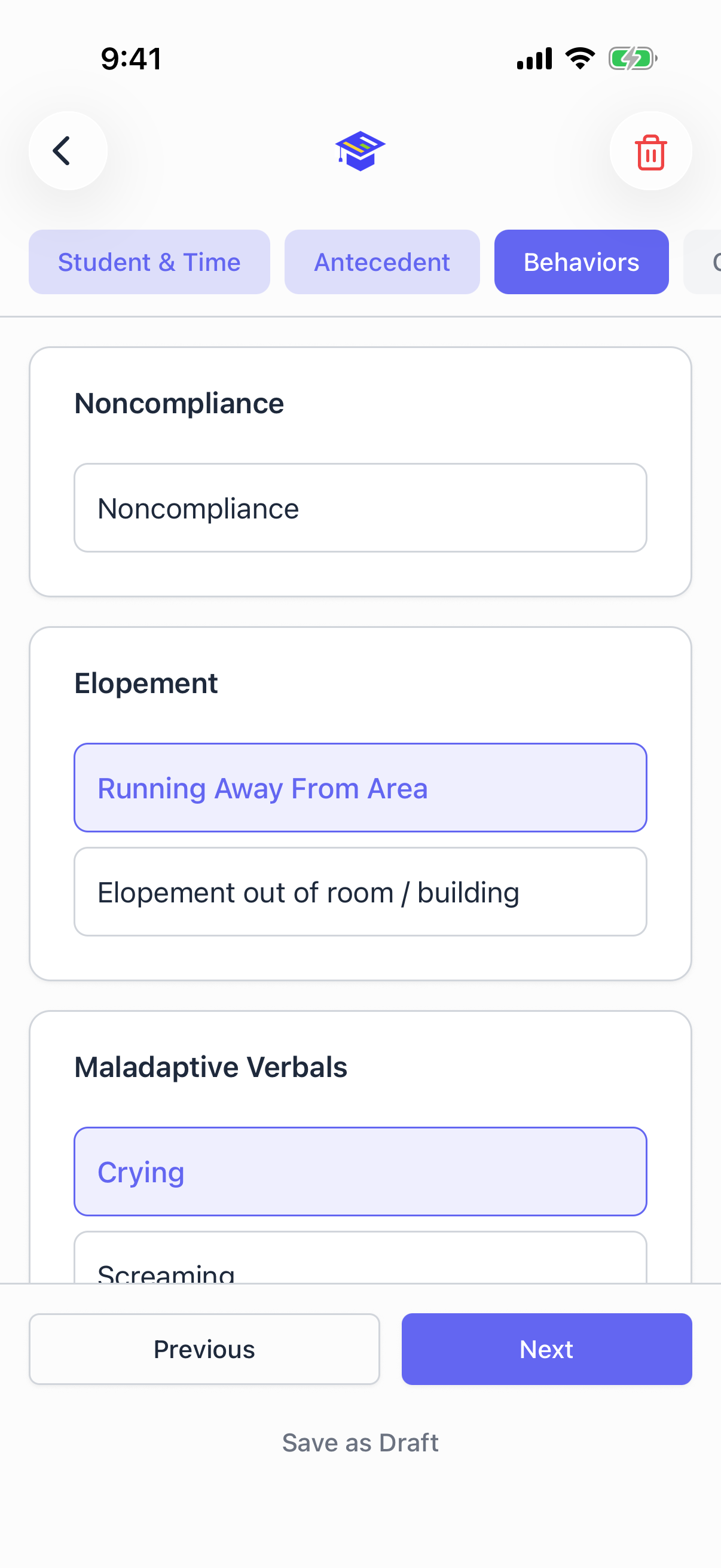
Behaviors are grouped into collapsible sections so you only open what you need. Detail fields appear once you check the box above them, which keeps the screen short.
The groups are:
- Noncompliance, with a description field
- Elopement, split into running away and leaving the building
- Maladaptive verbals: crying, screaming, profanity, teasing, arguing, threats, plus other and notes
- Aggression with or towards objects, with a description
- Self injurious behavior, with an intensity level and notes
- Physical aggression: hitting, kicking, throwing, biting, pinching, spitting, aggression with or towards objects, plus other and a description, with an intensity level and notes
- Other behavior, free text
At least one behavior is required to move on.
The support prompt
The first time you check a physical aggression box on a report, the admin support sheet opens automatically. If you need help right now, fill it in and send. Your response team gets a text and a push notification, and the alert is linked to this report.
If you do not need help, close it and keep going. It only appears once per report, so it will not interrupt you again while you are checking other boxes.
Step 4: Consequences
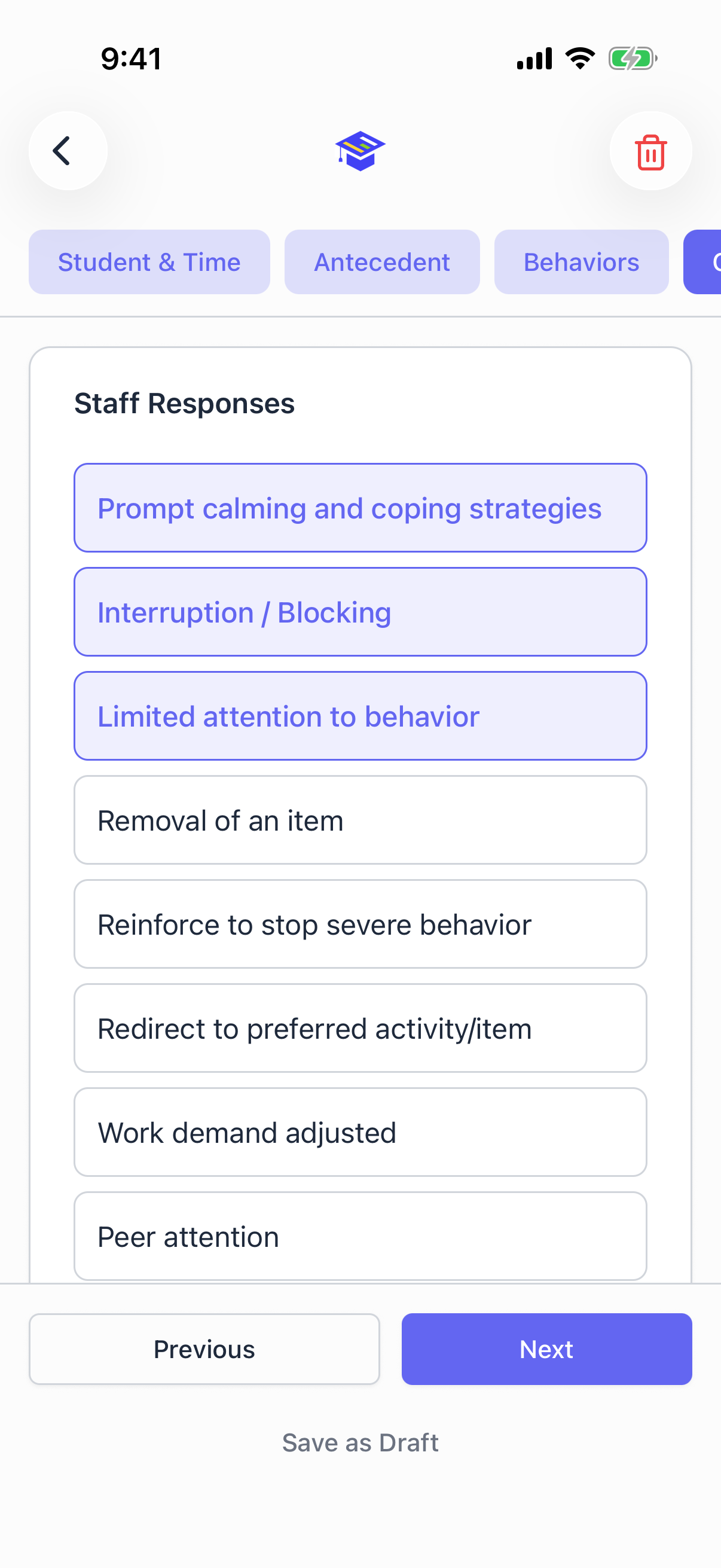
What staff actually did. Check everything that applies:
Prompt calming, interruption, limited attention, removal of item, reinforce to stop, redirect to activity, work demand, peer attention, teacher attention, gave desired item, gave choices, removal of expectation, removal of work task, cool down, offered space, follow through.
Set limits lets you record If/then or When/then.
Room clear. If you check this, the start and end times become required, and the end has to be after the start.
Removed from room. Records start and end times, the reason, and where the student went: hall for a private conversation, BASE, or the office.
Other notes for anything not covered.
At least one consequence is required to move on. Free text in Other notes counts.
Step 5: CPI and restraint
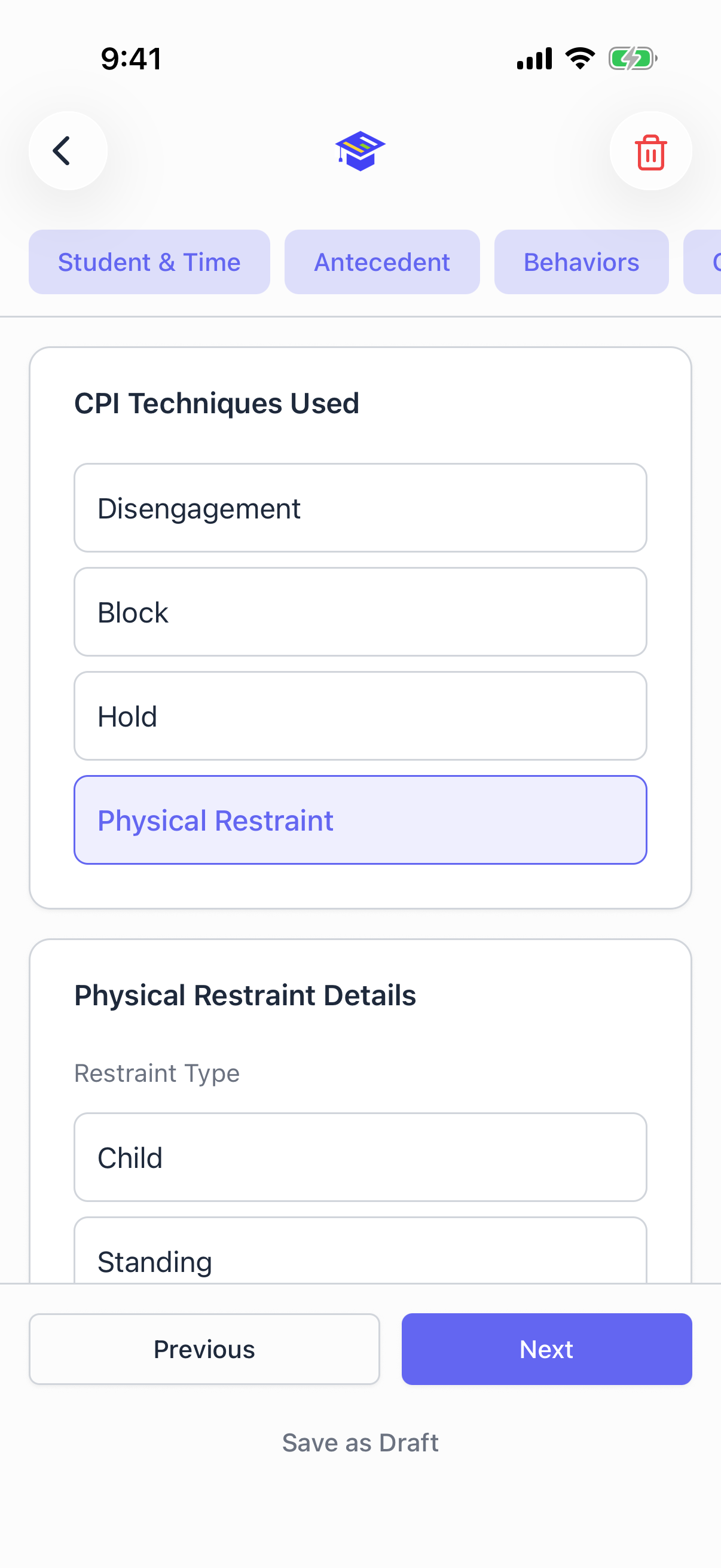
Record the CPI safety responses used: disengagement, block, hold, or restraint.
If you check restraint, more fields appear:
- Restraint type: Child, Standing, or Team Control
- Start and end time of the restraint
- Notes
- Staff involved
- Training dates for the staff involved
Anything with restraint is automatically flagged for administrator review. Nobody has to remember to raise a hand, and there is no way to file a restraint quietly. The report carries an Escalated badge everywhere it appears.
This step has no required fields. If none of it applies, tap through.
Step 6: Review
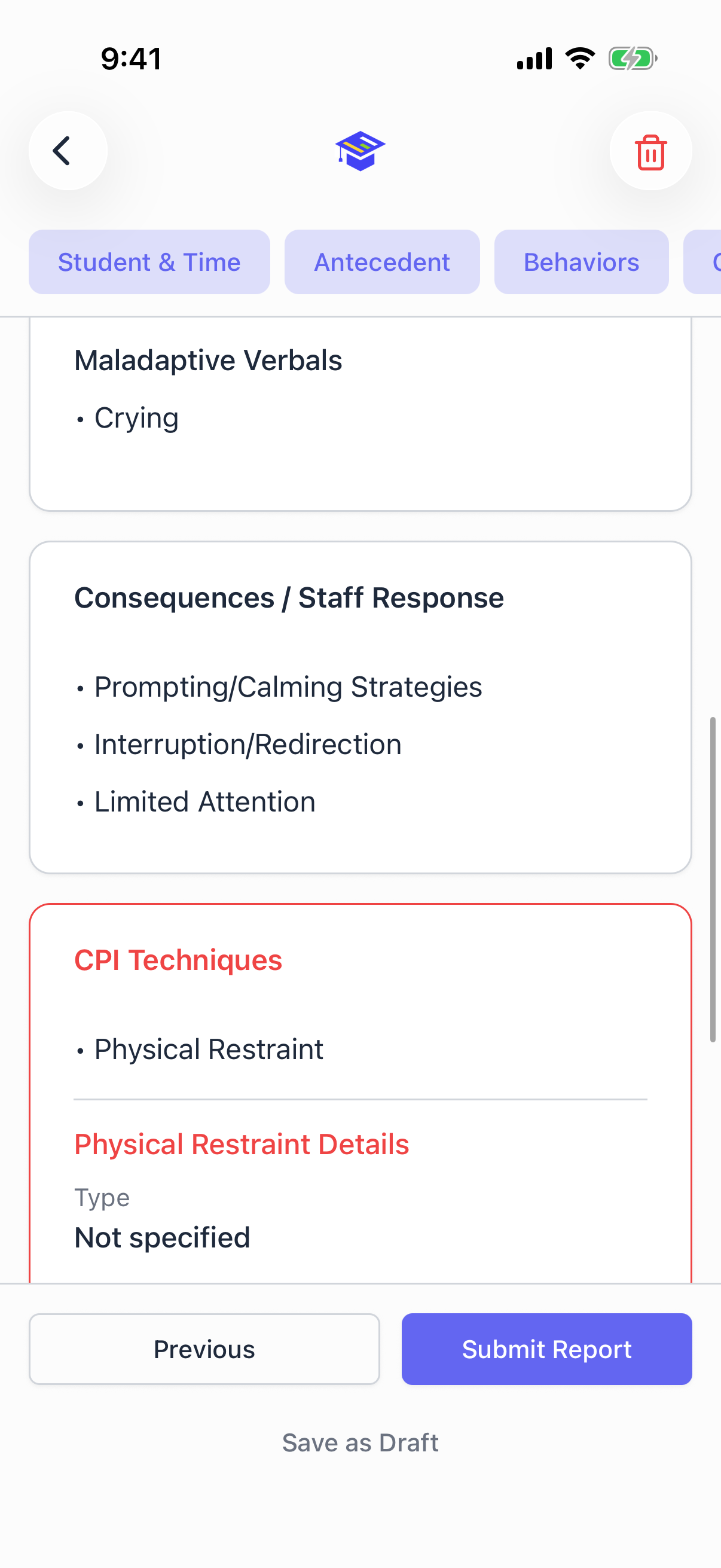
Everything you entered, in one screen, before it goes anywhere. Read it. Tap back into any step to fix something.
Additional notes is here, for the narrative that the checkboxes cannot hold. This is where the context lives for whoever reads this in six months.
When you are ready, tap Submit.
Two things can happen at submit:
- A long duration warning. If the report covers more than two hours, SPEDup asks whether that is right before continuing. It is a check, not a block. Tap Continue if two hours is genuinely what happened.
- An offline confirmation. If you have no signal, you get a message saying the report is saved on your device and will submit itself when you are back online. That is the report finished, not a draft. See Drafts and working offline.
Editing and deleting
You can edit and delete your own reports, drafts and submitted alike. Administrators can edit any report at their school.
Open the report and use the delete icon in the header, or open a draft from the Drafts tab. Deleting asks you to confirm first.
What if I have to leave in the middle?
Leave. Every step you advance saves your progress, and picking the student saved it in the first place. The draft is waiting in the Drafts tab, and on the home screen under Pending Drafts, and it resumes on the step you left it on.
You can also tap Save Draft at any point to save deliberately.