
There are two ways to sign in to SPEDup. Which one you use depends on your district.
Option 1: Sign in with ClassLink
If your district uses ClassLink, this is the way to go. You will not need a separate SPEDup password.
SPEDup is a certified ClassLink application, which means your district IT team can find it in the ClassLink library and turn it on for staff like any other approved app.
On the mobile app:
- Open SPEDup and tap Sign in with ClassLink.
- Sign in with your district account when ClassLink asks.
- You land back in SPEDup, signed in.
On the dashboard:
- Go to the sign in page and click Sign in with ClassLink.
- Sign in with your district account.
- You land on your dashboard.
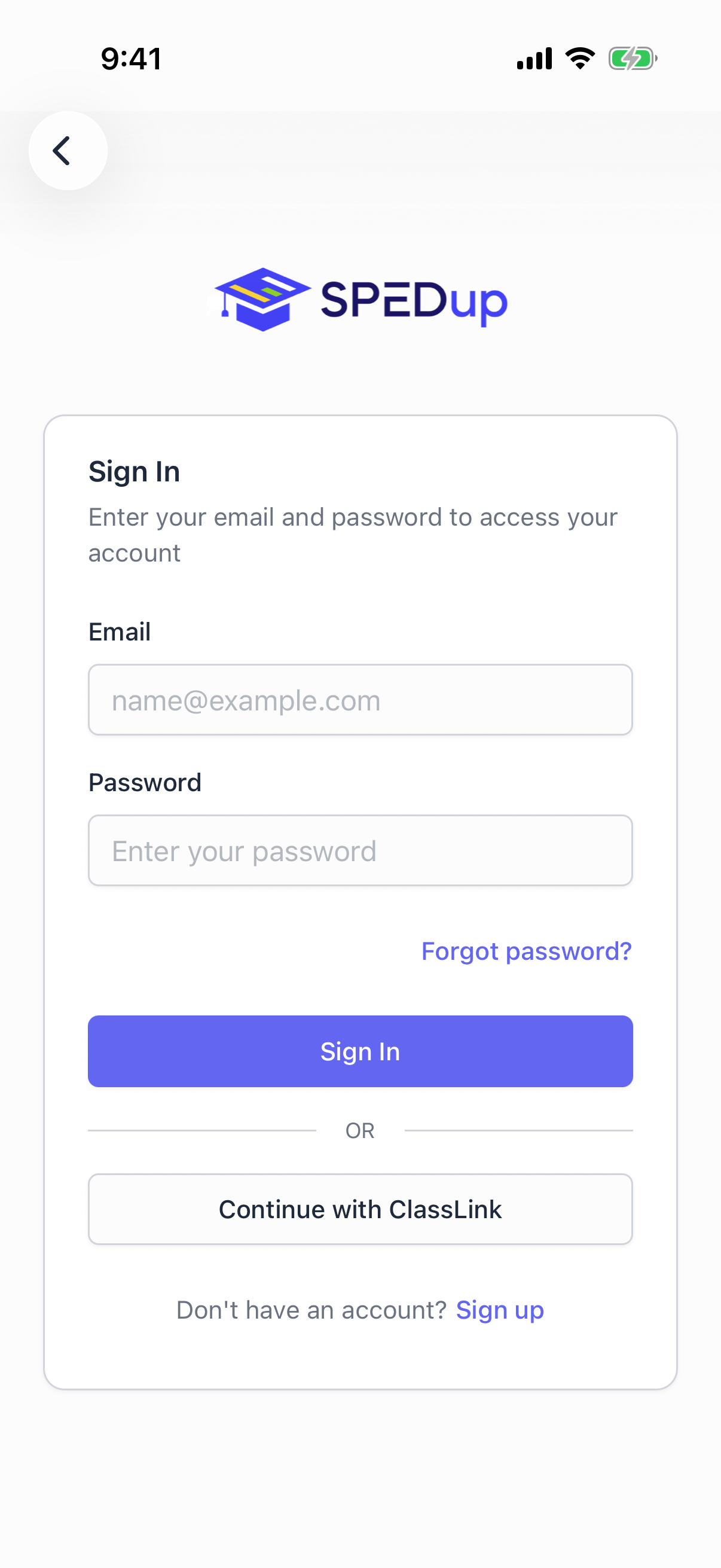
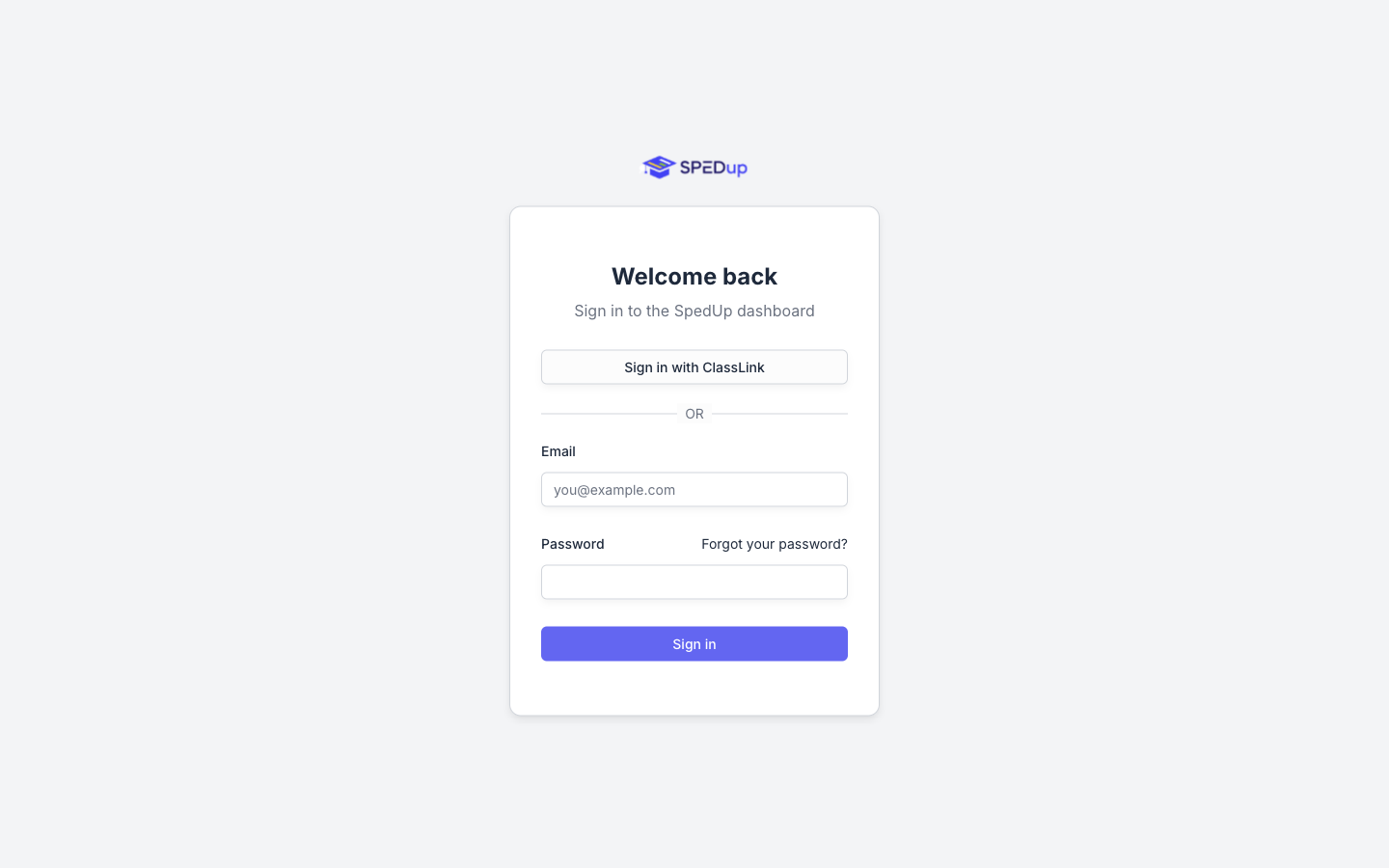
Your ClassLink account and your SPEDup account are linked by your verified school email address. That means the same person always lands in the same SPEDup account whether they signed in on their phone or on the dashboard. You will not end up with two separate sets of reports.
If ClassLink says SPEDup is not available
Your district has not turned SPEDup on yet. Ask your district IT contact to provision it from the ClassLink library, or email us at support@spedupeducation.com and we will help them through it.
Option 2: Sign in with an email address and password
If your district does not use ClassLink, create a SPEDup account directly.
On the mobile app:
- Open SPEDup and tap Sign Up.
- Enter your full name, your school email address, and a password. Passwords must be at least six characters.
- Confirm the password and tap to create the account.
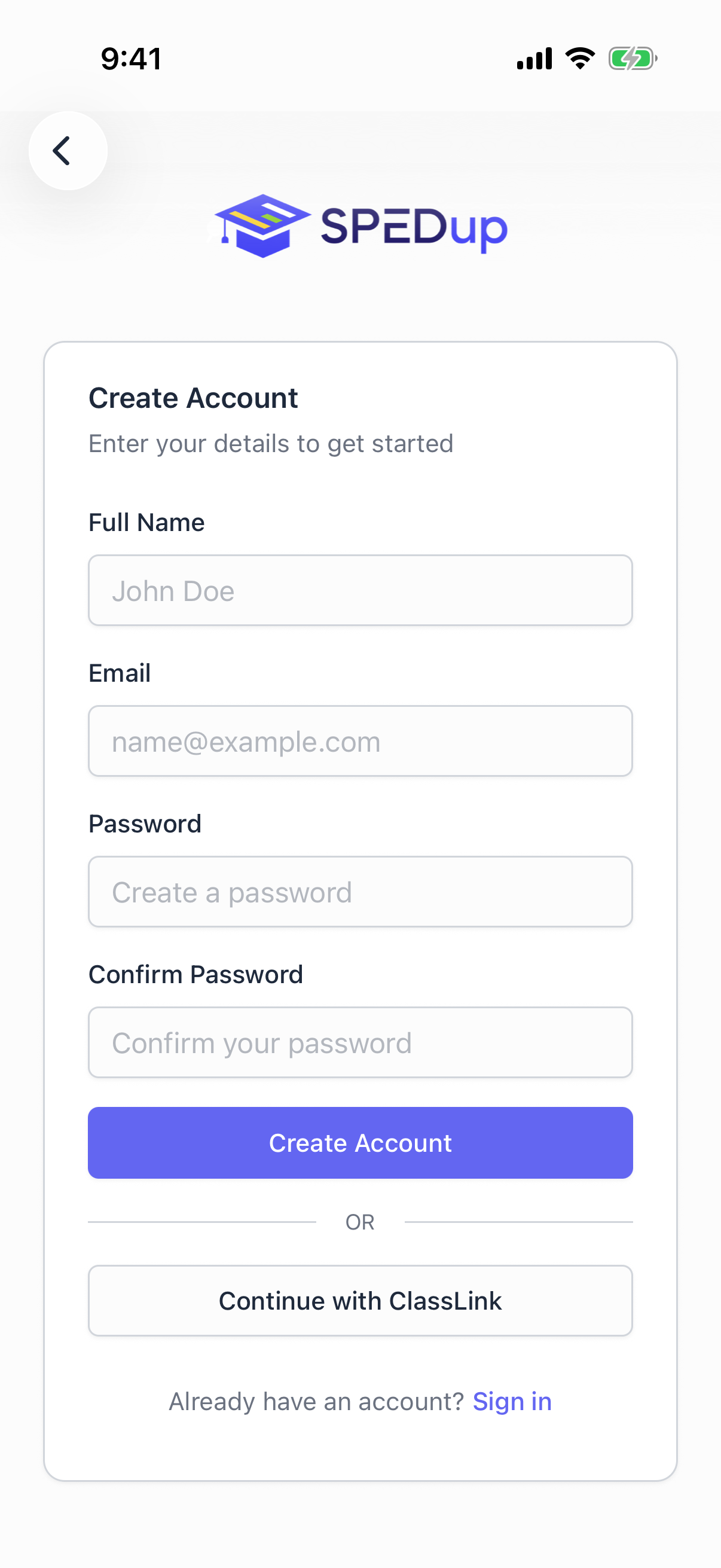
Use your school email address, not a personal one. It is how your account gets matched to your school, and it is where password resets go.
Forgot your password
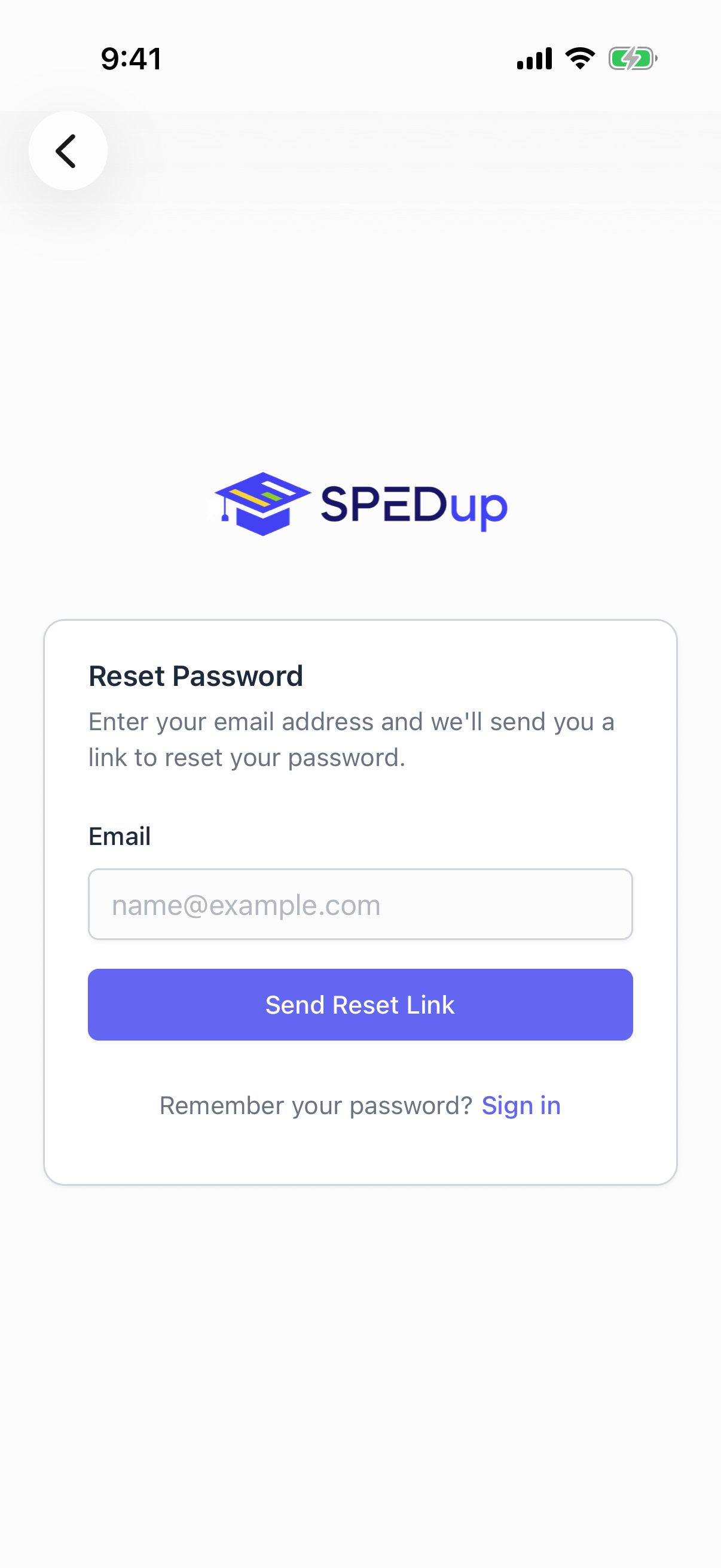
On either app, use the Forgot password link on the sign in screen. Enter your email address and SPEDup sends you a reset link. If nothing arrives within a few minutes, check your spam folder, then check that you typed the same address your account was created with.
If you sign in with ClassLink, SPEDup does not hold your password at all. Reset it through your district instead.
What happens next
Creating an account is only half of setup. You still need to be attached to a school before you can see any students or write any reports.
Keep going: Join your school