
Four tabs across the bottom, and a support button in the header of every screen. That is the whole layout.
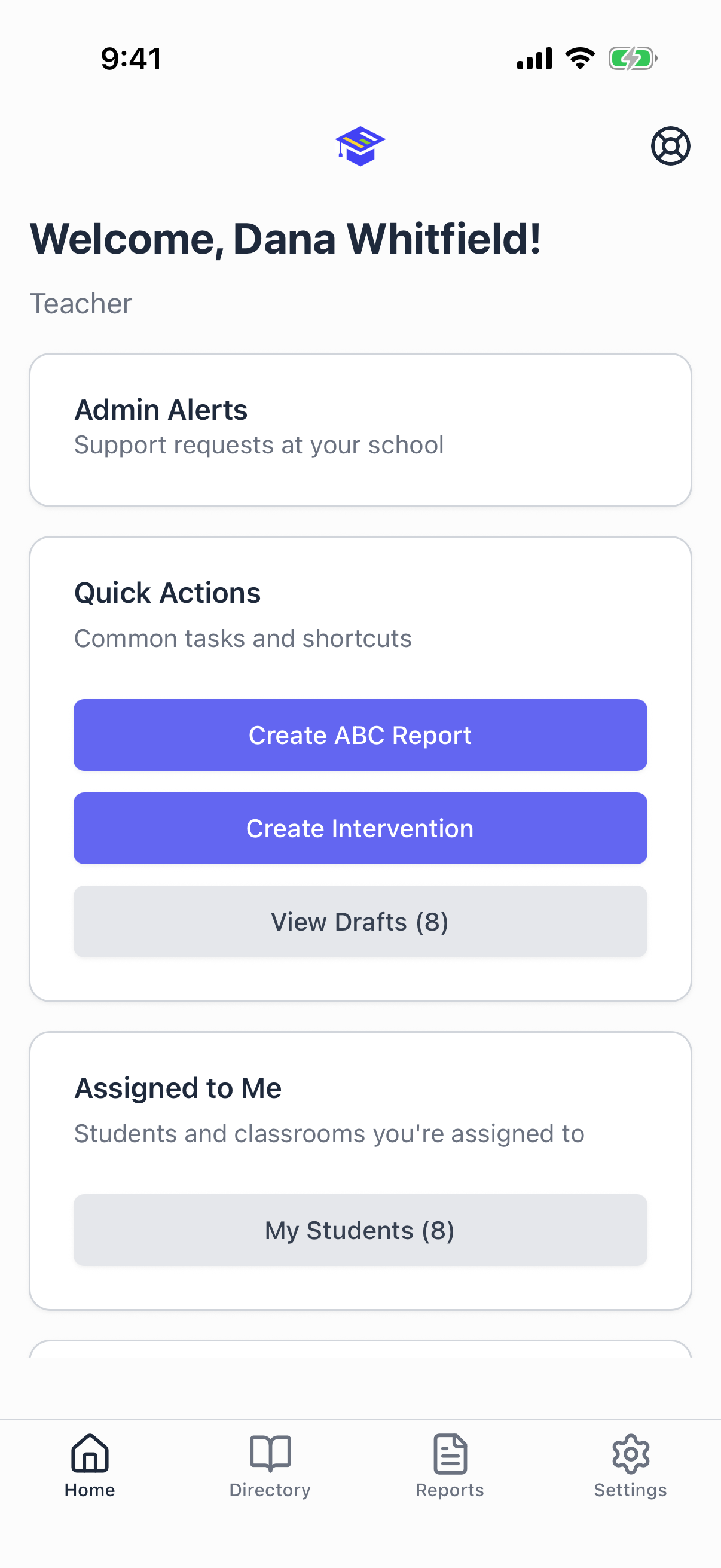
The four tabs
| Tab | What it is for |
|---|---|
| Home | Your starting point. Quick actions, what you are assigned to, recent activity, and any drafts waiting for you. |
| Directory | Students, classrooms, and staff at your school. |
| Reports | Create a report, pick up a draft, or look through what has been filed. |
| Settings | Your profile, security, response team, theme, and notifications. |
The home screen
What you see depends on your role, so not every card below will be on your screen.
Admin Alerts. At the top. Tap it to open the alerts list for your school. When something is waiting for a response, the card turns red and shows a count. See Requesting admin support.
Quick Actions. Create ABC Report, Create Intervention, and a View Drafts button that appears with a count when you have drafts waiting. Administrators also get Add Student here.
Assigned to Me. Shortcuts into My Students and My Classrooms. These are filtered lists of just the students and rooms you are responsible for, which is usually what you want instead of scrolling the whole building.
Recent Activity. The latest reports across your school, with the name of the teacher who filed each one. Reports involving restraint carry an Escalated label. Tap any row to open the full report.
School Overview. Three counts for your school: ABC Reports, Interventions, and Escalations.
Pending Drafts. Anything you started and have not finished. Tap Resume on a row to pick up exactly where you stopped.
My Submitted Reports. Your own recent filings, newest first.
The support button
The life ring icon in the top right of every screen. Tap it to request administrator support right now. Your response team gets a text message and a push notification immediately.
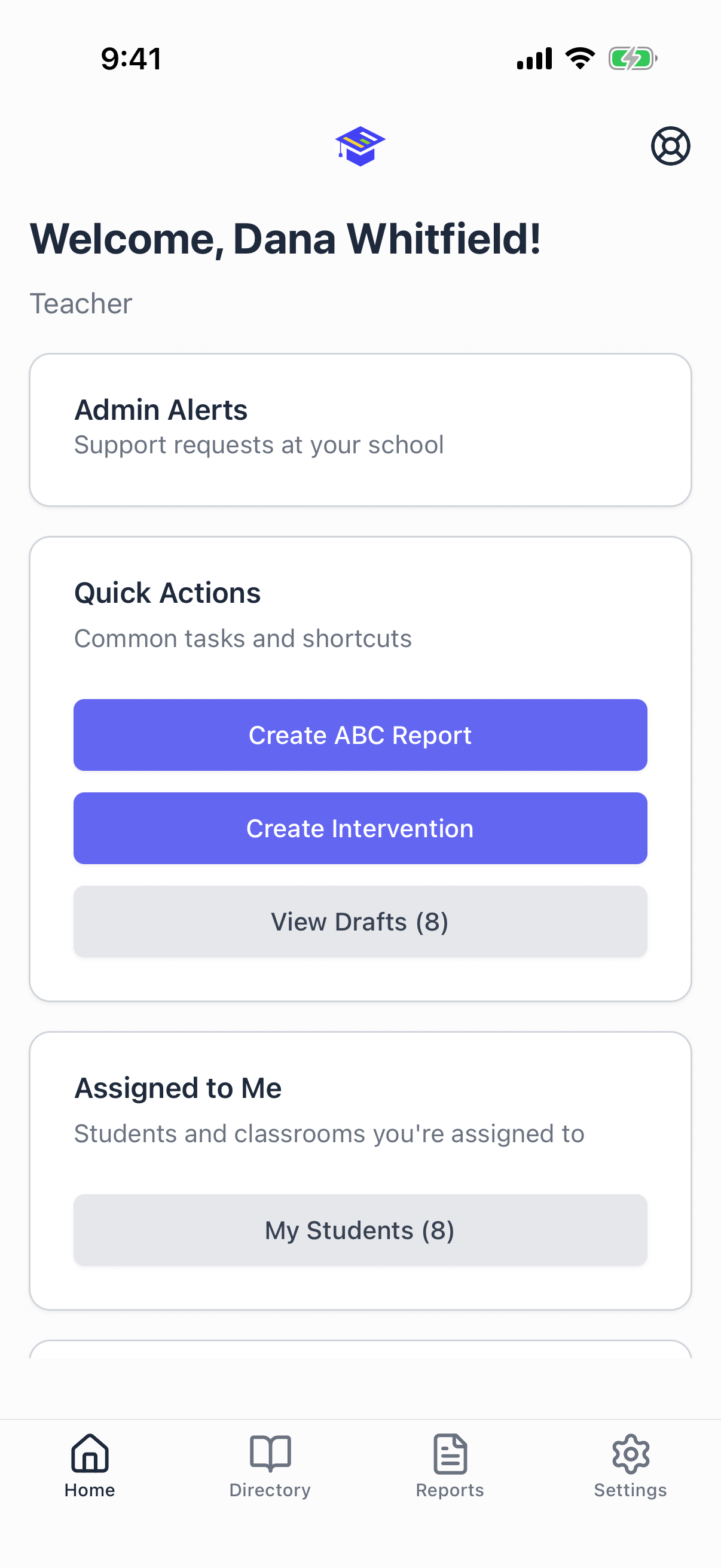
If you have not set up a response team yet, tapping it offers to take you there instead of sending nothing. Set that up before you need it. See Requesting admin support.
Search
Students, classrooms, staff, and reports all have search. Start typing and the list filters as you go. When nothing matches you get a clear message saying so rather than an empty screen.
The connection banner
If you lose signal, a banner appears telling you that you are offline. You can keep working. Reports save to your phone and upload themselves when you are back in range.
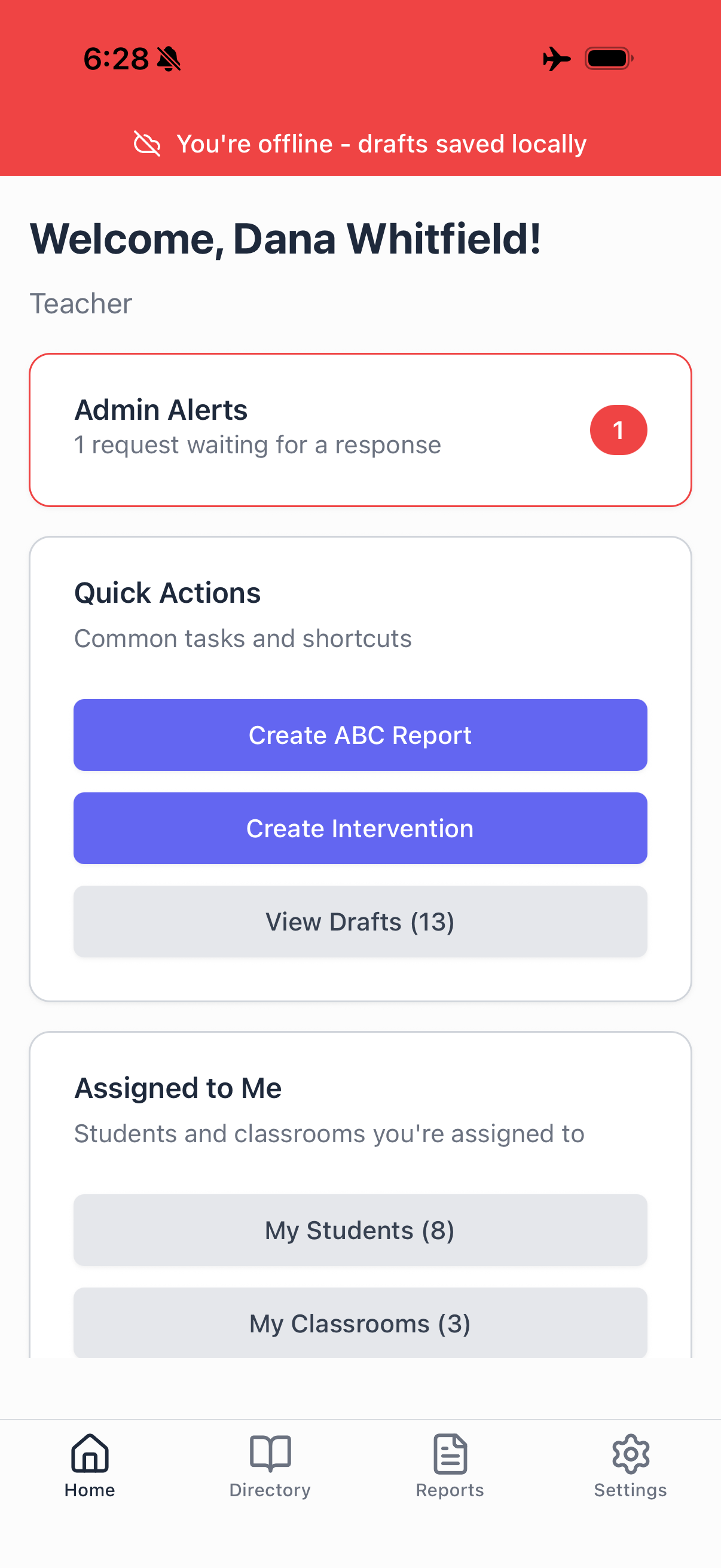
See Drafts and working offline.
Dark mode
Settings, then the Dark Mode switch. The whole app follows it, including charts and reports.
Confirmations
When something saves, sends, or fails, a short message slides in at the top of the screen. If you do not see one after tapping a save or submit button, the action probably did not go through. Check the connection banner.