
You can file ABC and intervention reports from the website, not just the mobile app. Same fields, same reports, same place they end up. A report filed on the dashboard is indistinguishable from one filed on a phone.
Use whichever suits the moment. The phone is better during an incident, because it is already in your hand and it keeps working when the wifi does not. The dashboard is better afterwards at a keyboard, especially for a long write up or when you are catching up on several reports at once.
Starting a report
Four ways in:
- Quick Actions on the dashboard, the first thing you see when you sign in. Create ABC Report and Create Intervention are there, along with View Drafts once you have any.
- Reports in the sidebar, then ABC report or Intervention report
- A student's page, then ABC report or Intervention in the header, which pre selects that student
- An ABC report you are already looking at, then Intervention report, which carries the student and start time across and links the two
Writing an ABC report
The dashboard uses the same six steps as the app: student and time, antecedent, behaviors, consequences, CPI and restraint, then review.
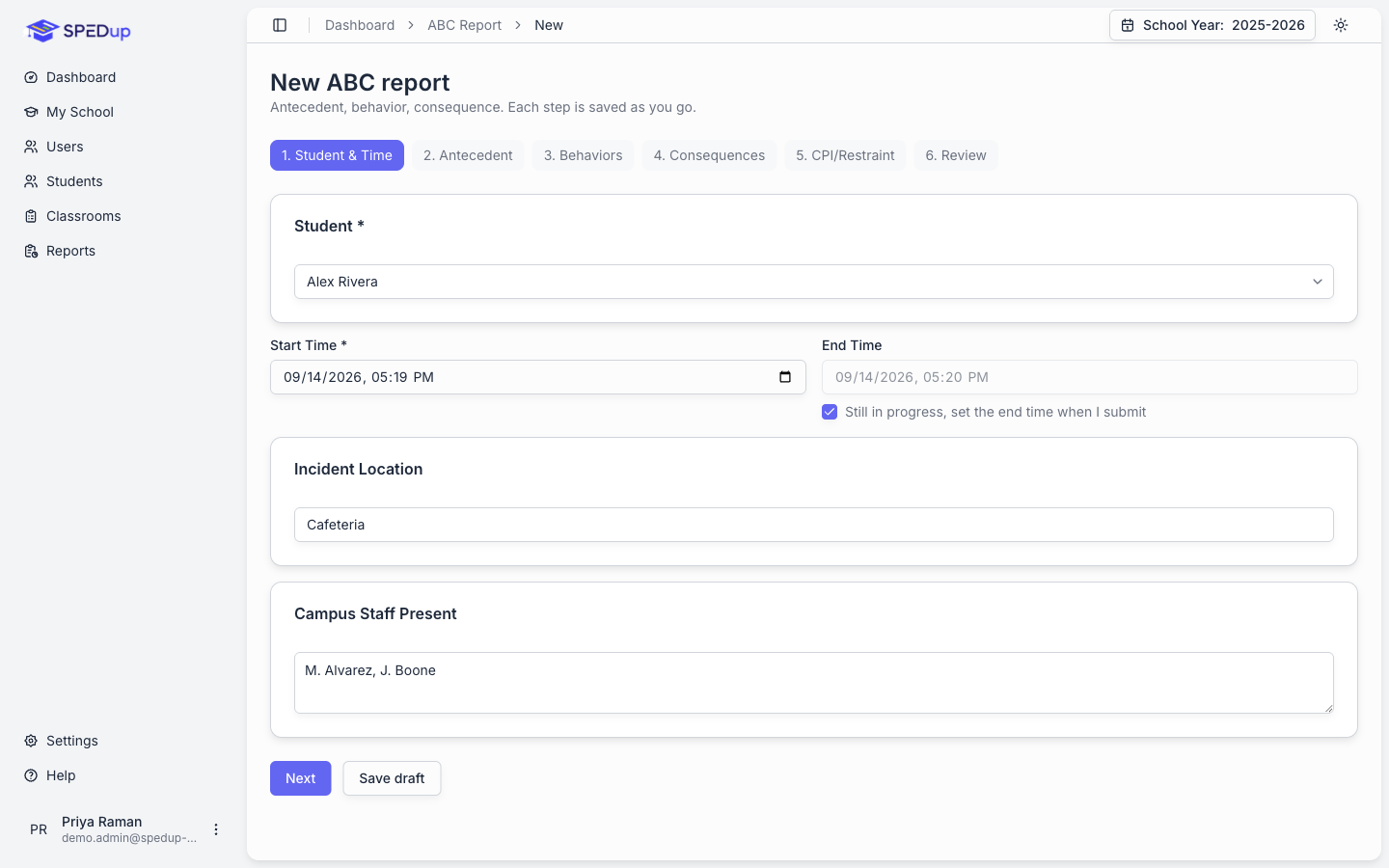
The numbered steps across the top are buttons. Click any of them to jump straight there, which is quicker than clicking Next repeatedly when you only need to fix one thing.
Each step checks itself before it lets you move on:
- Step 1 needs a student. It also refuses an end time before the start time, or a report covering more than twelve hours.
- Step 2 needs an antecedent.
- Step 3 needs at least one behavior.
- Step 4 needs at least one consequence. If you record a room clear, it needs both times, and the end has to come after the start.
Steps 5 and 6 are optional. Submit report checks everything again and sends you back to the first step with a problem, so nothing gets filed half finished.
Start and end times
The end time tracks itself while the report is open. If the incident is still unfolding, leave Still in progress ticked and the real end time is recorded when you submit.
Set the end time yourself and the tick clears automatically, because picking a time is a clear signal you want to control it.
A report covering more than two hours asks you to confirm before it files. That is almost always a timer left running rather than a genuinely long incident.
Writing an intervention report
One screen rather than six. Pick the student, optionally the classroom, record who requested the intervention, and describe the activity and the reason.
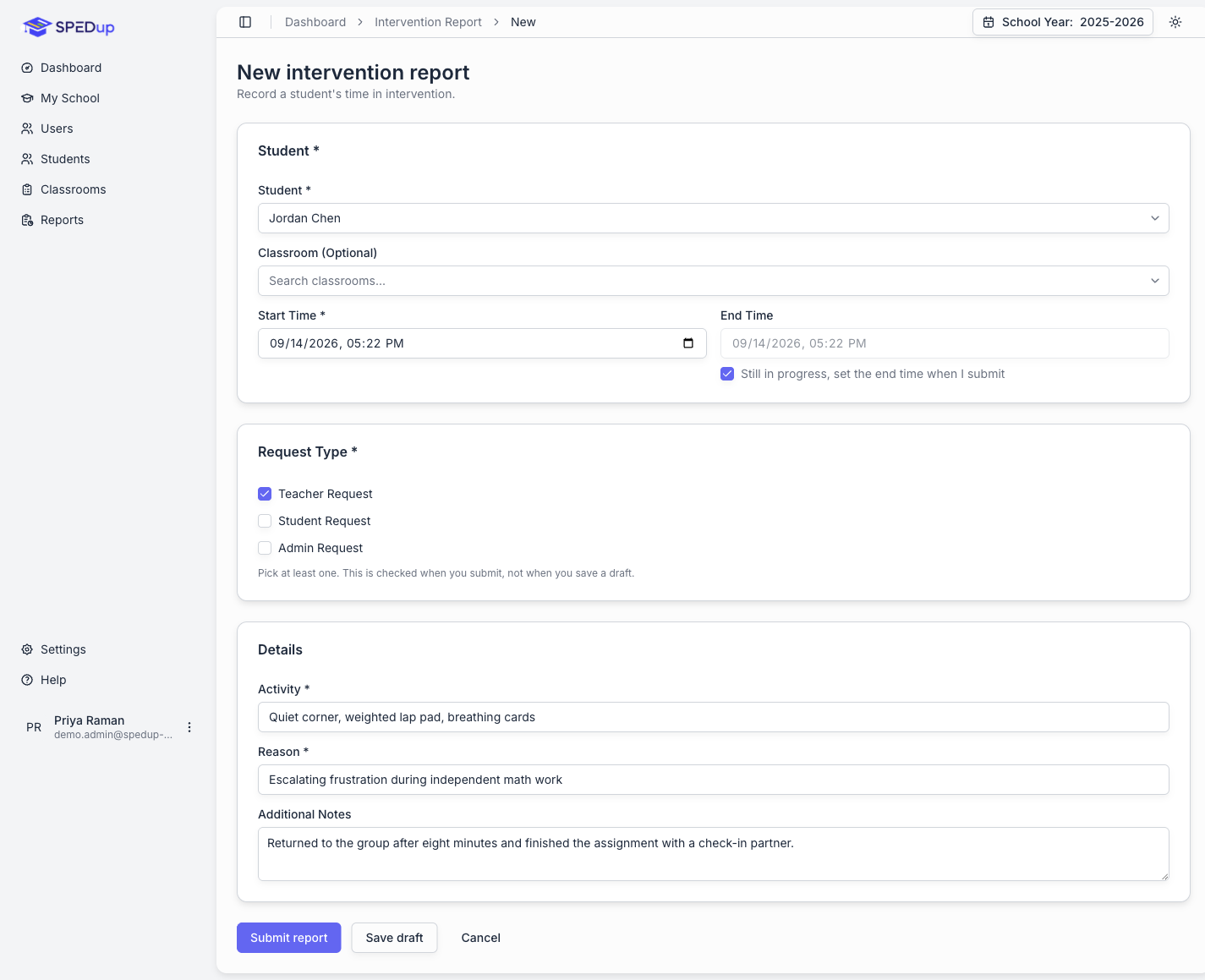
At least one request type is required, and it is checked when you submit rather than when you save a draft.
Finding reports afterwards
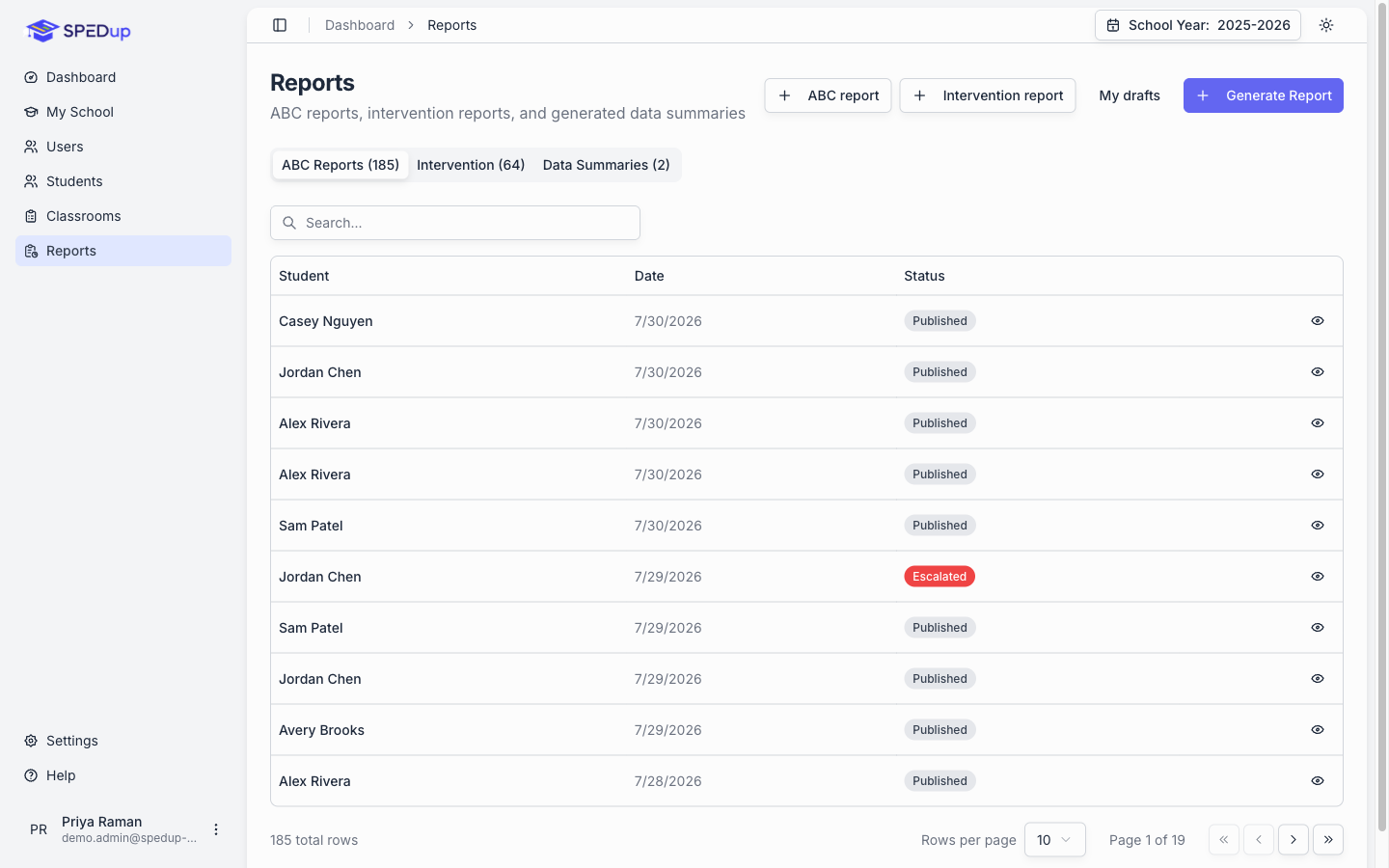
Reports in the sidebar has three tabs: ABC Reports, Intervention, and Data Summaries, each with a count. Escalated reports carry a red badge. Drafts never appear here, only filed reports.
Drafts
Anything you save waits for you under Reports, then My drafts.
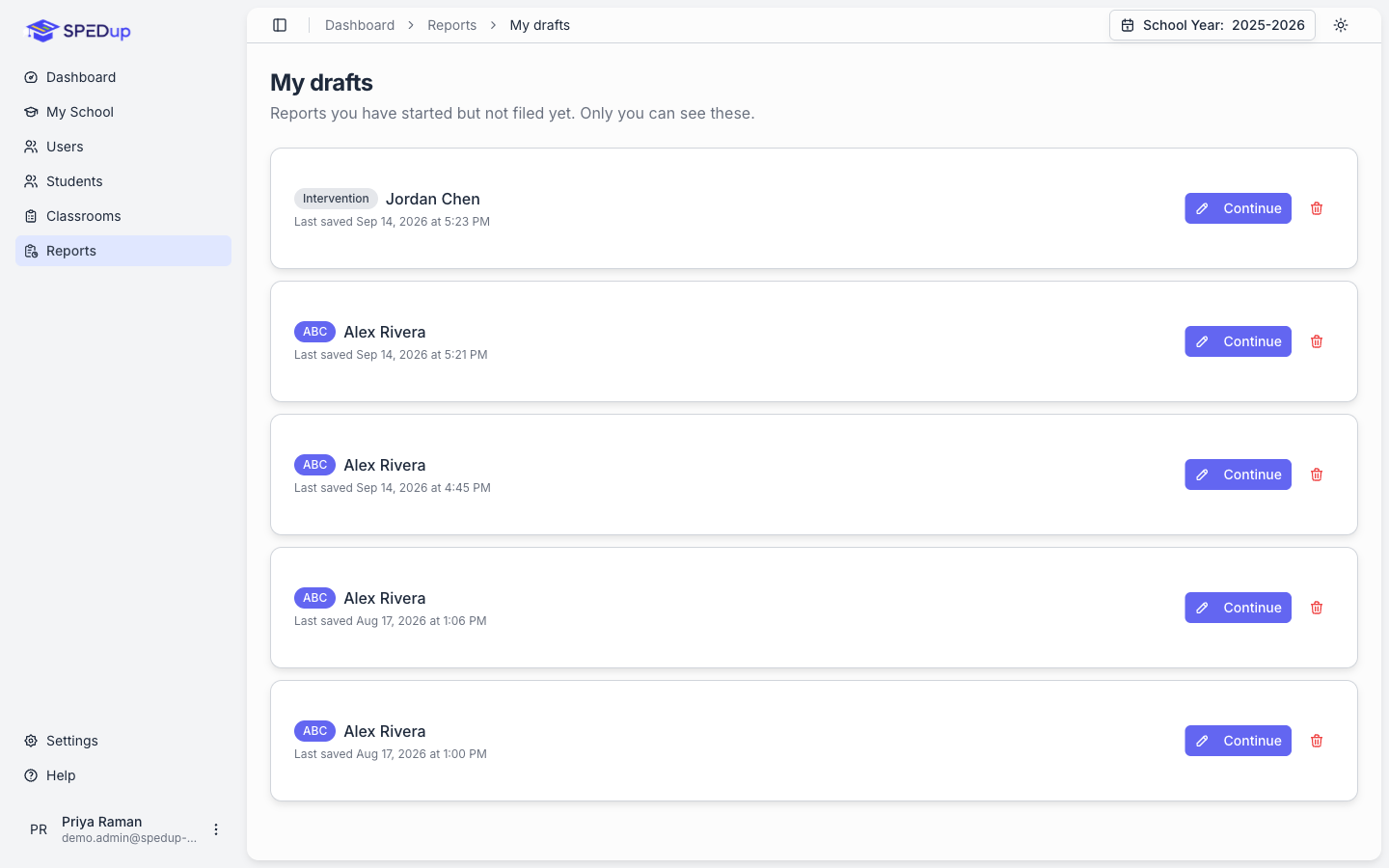
Drafts are yours. Nobody else sees them, including administrators, because an unfinished report is not something a colleague should pick up.
Continue reopens a draft with everything you had entered. Delete draft removes it, and asks first.
Your drafts are the same list on both platforms. Start a report on your phone in the classroom, finish it at your desk, or the other way round.
One difference worth knowing
The dashboard does not work offline. The mobile app does.
The app keeps writing when you have no signal and sends everything once you are back on wifi. A browser cannot do that. If your connection drops mid report on the dashboard, anything you have not saved is lost.
If you are somewhere with patchy signal, use the phone. That is what it is for.
Restraint and asking for help
Ticking Physical restraint on step 5 opens the restraint block: type, notes, the staff involved, and their CPI training dates. It also marks the report as escalated.
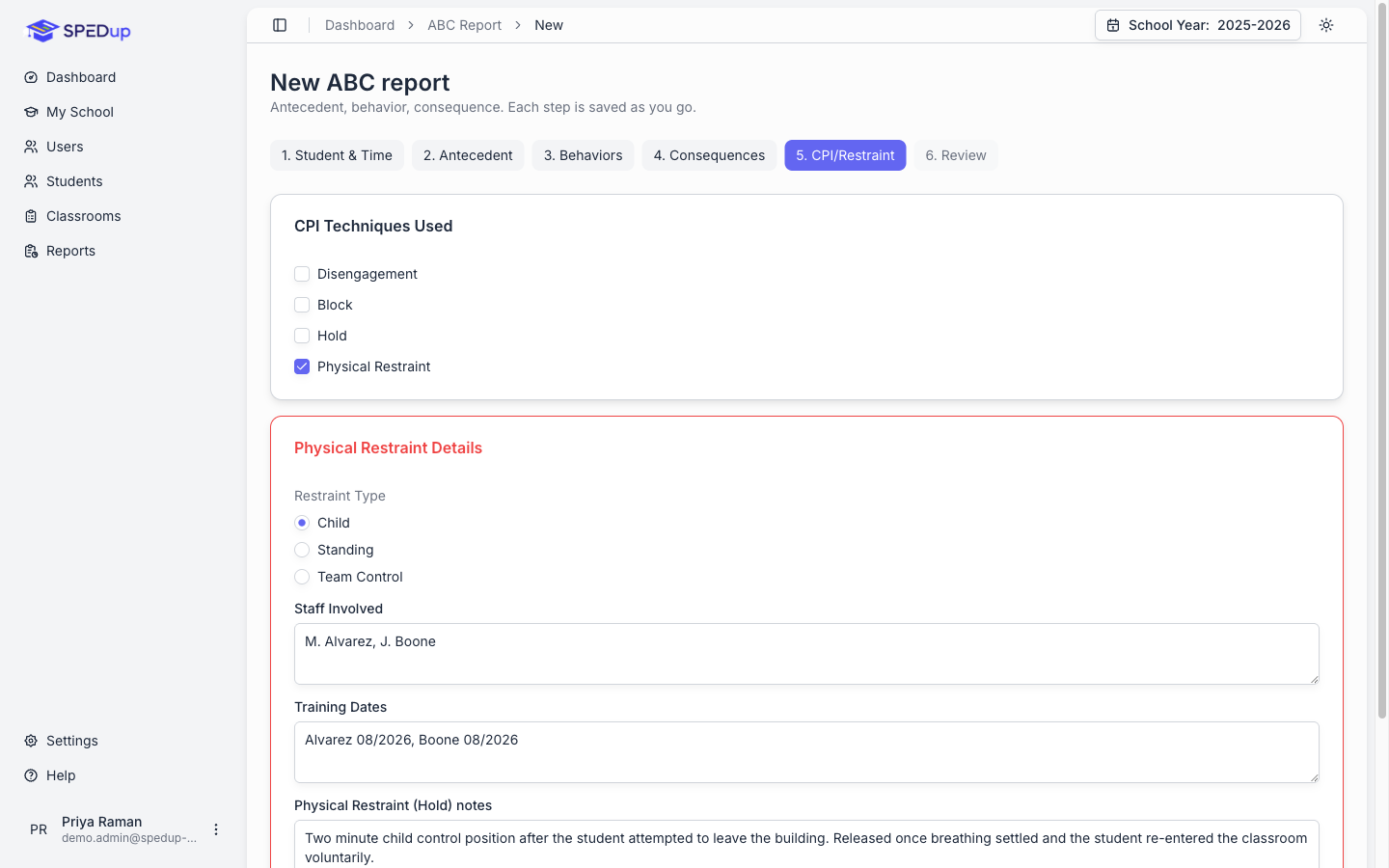
Asking for help happens earlier than that. The moment you record any physical aggression on step 3, the dashboard offers to notify your response team, because that is the point at which you might need someone, not twenty minutes later when you are writing up a restraint. It offers once per report. If you dismissed it and change your mind, Notify my response team is in the restraint block on step 5.
Your response team receives a text message, exactly as they would from an alert sent on a phone. There is no push notification, on either platform.
Response teams are set up in the mobile app, under Settings. If you have not set one up yet, the dashboard will tell you so rather than pretending to send. Your report is saved either way.
Linked reports
Filing an intervention report from an ABC report links the two. Each one then shows a Linked Reports card with a View Report button through to the other, so you can follow an incident from the behavior to what was done about it without searching for the pair.
Linking also marks the ABC report as escalated.
What you cannot do here yet
- Set up or change your response team. Mobile only, under Settings.
- Work offline, as above.
Everything else about writing a report works the same in both places.